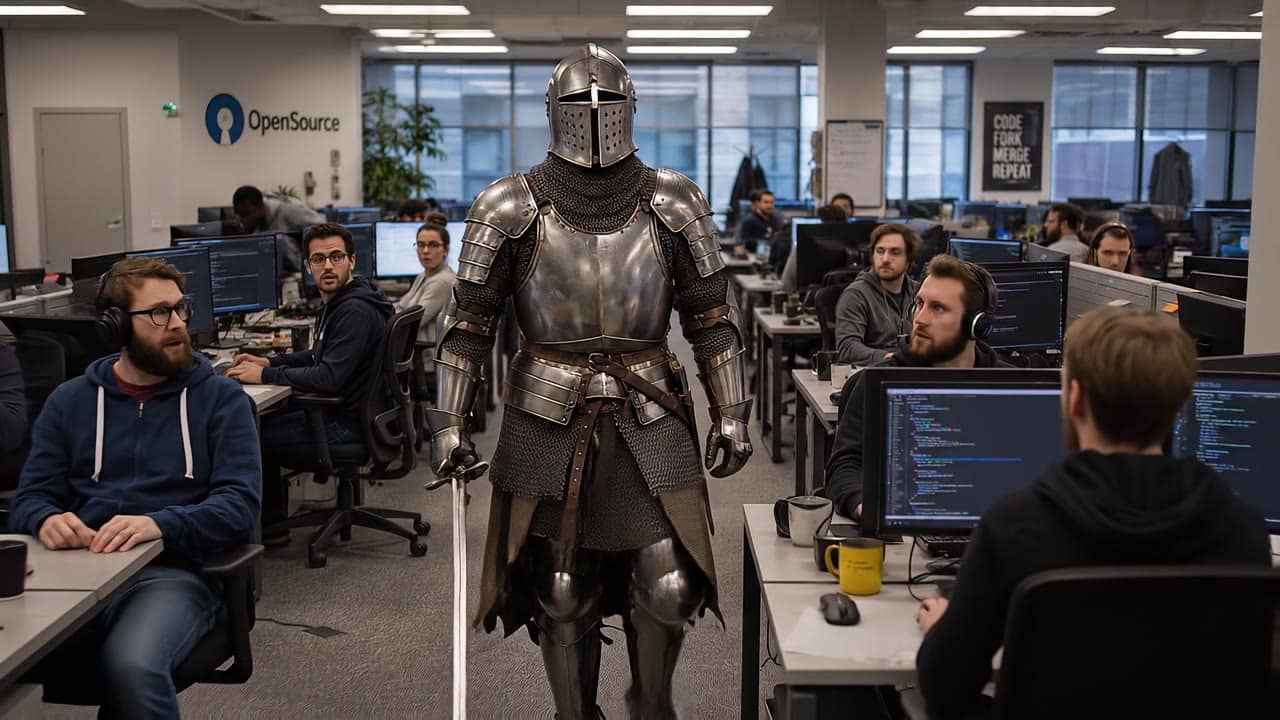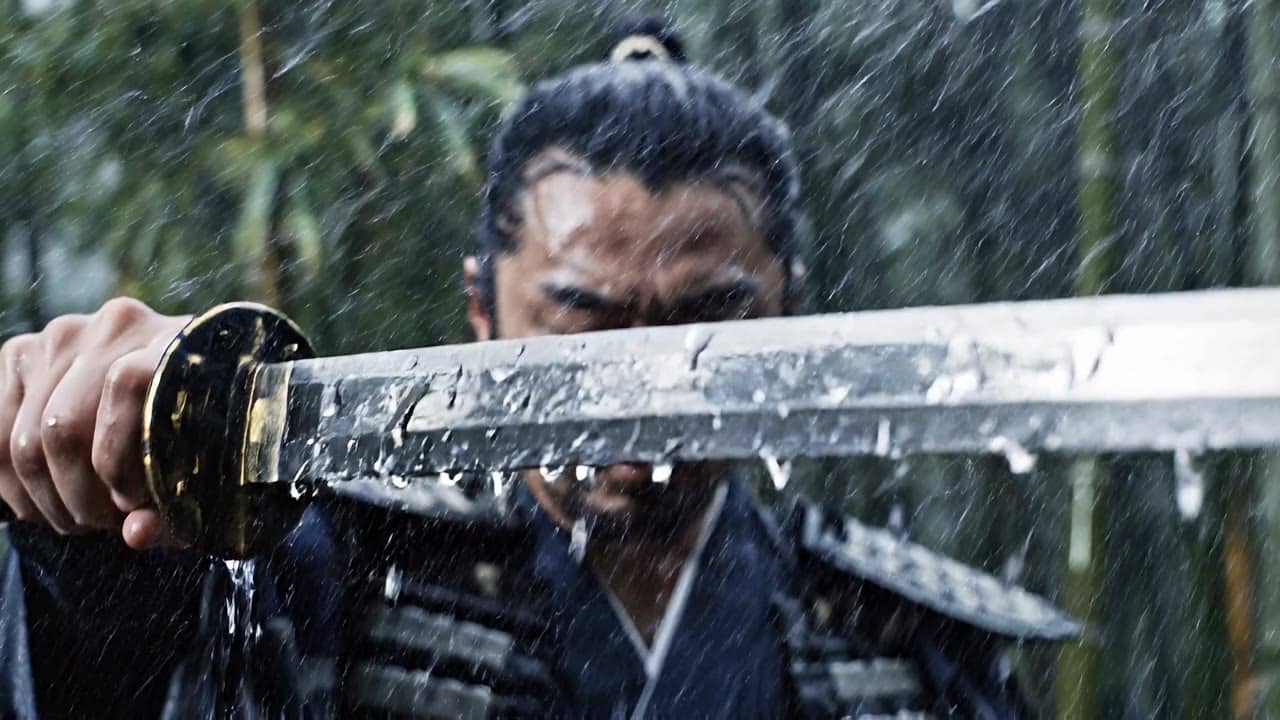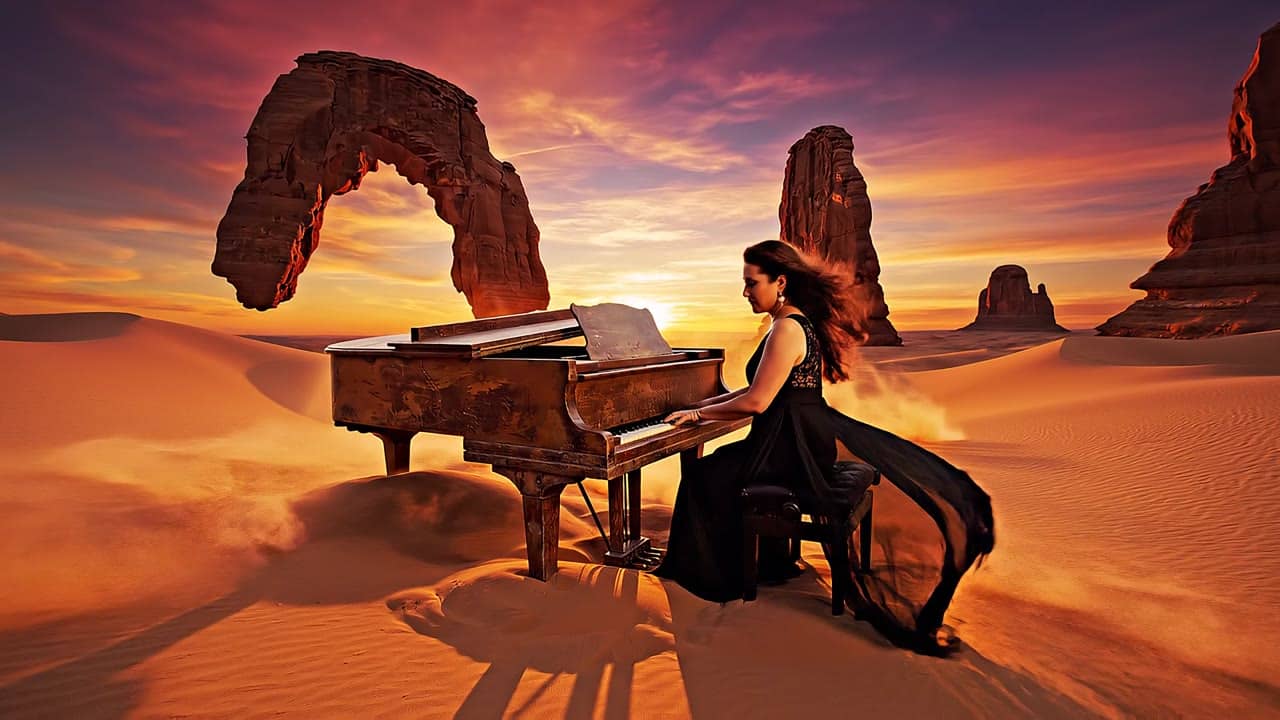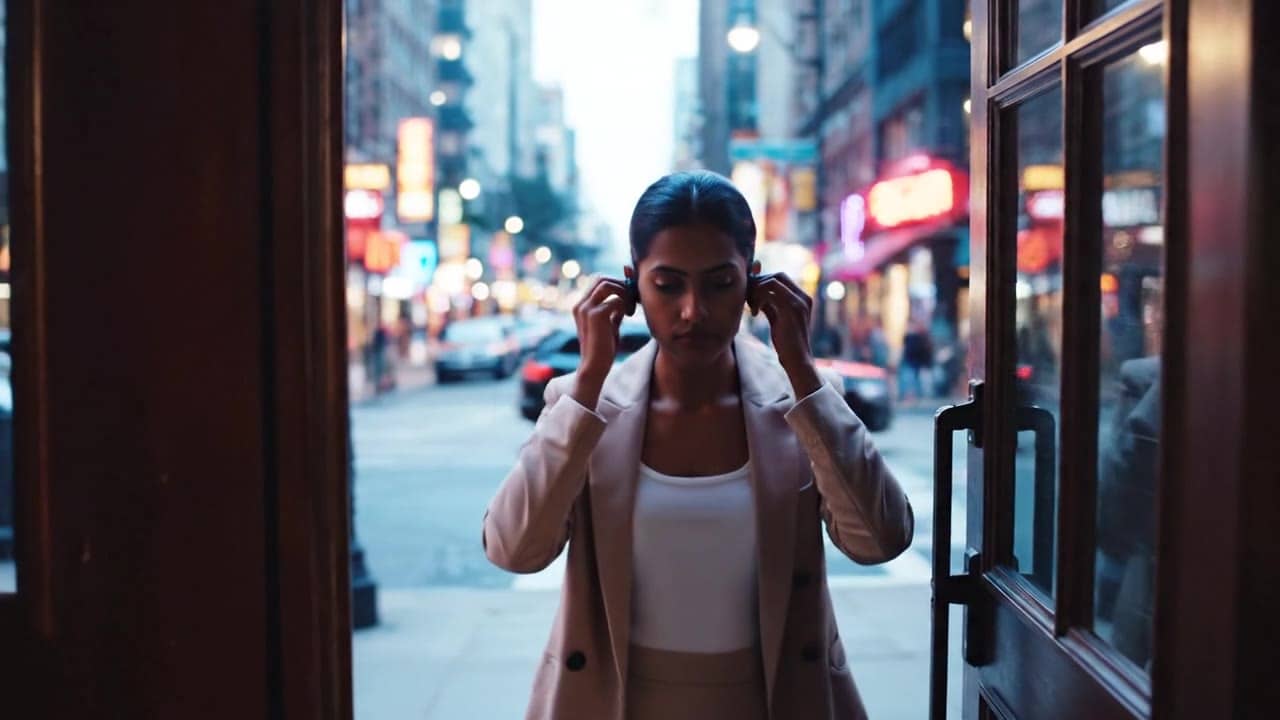
Polished short
$2.08
4s · 720p
GOOGLE PREMIUM VIDEO MODEL
Short polished clips with native audio, reference-guided shots, 4K output, and first-last or extend workflows.
Use Veo 3.1 for premium 4, 6, or 8 second shots when you need text-to-video, start images, reference stills, first/last-frame control, 4K delivery, or clip extension inside MaxVideoAI.
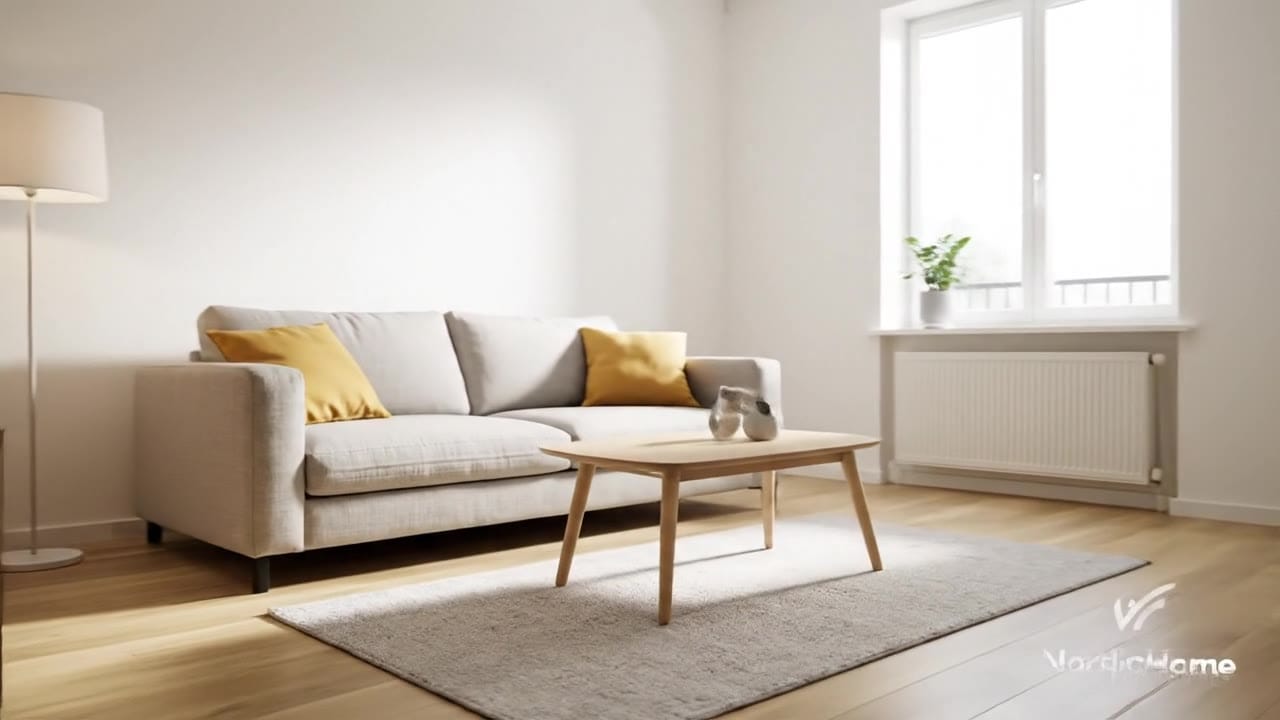
Veo 3.1 example
Polished native-audio video shot
Premium short clips
Build polished 4, 6 or 8 second shots for ads, launches and narrative beats.
Native audio
Generate synchronized ambience, dialogue or sound direction on supported routes.
Reference stills
Use start images or multiple references to anchor identity, styling and wardrobe.
First-last control
Bridge opening and ending frames when the final pose or product placement matters.
Extend route
Continue an existing Veo render without changing engines.
720p to 4K
Choose 720p, 1080p, or 4K before generation.
Audio-on preset totals - see the exact live price in the app before you generate.
$2.08
4s · 720p
$3.12
Most popular6s · 1080p
$4.16
8s · 1080p
$6.24
8s · 4k
8s
Up to 8s at 4K
All prices are MaxVideoAI display prices in USD credits for preset scenarios.
See live Veo 3.1 renders powered by the same settings you have in MaxVideoAI.
See what's possible with Veo 3.1 — current Veo model for cinematic video and reference-guided control.
Jump into the app with one click and reuse the setup.
Dialogue, ambience and SFX generated in sync.
Keep characters, style and scene consistency across sequences.
Built-in guardrails and safety filters for responsible review.
Choose Veo 3.1 for short polished shots where motion quality, audio and reference fidelity matter more than the lowest iteration cost.
Use a start image, multiple reference stills, or first-last frames when the shot has to respect a product, character or ending composition.
Compare Veo 3.1 with Kling 3 Pro when you are deciding between premium short polish and longer storyboard-style control.
Veo 3.1 is not just a text model. Choose the right path in the UI: plain-language text-to-video, image-guided animation, multi-reference control, first/last bridging, or clip extension.
Source: Official Veo prompt guide
Describe the subject, camera path, pacing, lighting and audio intention clearly.
Use one still to define the opening composition and visual identity.
Attach still references when wardrobe, product details or style need to stay consistent.
Provide opening and closing images to guide the transition and final landing point.
Continue a Veo clip when the idea needs more time after the first render.
Use when the shot starts from language and Veo should infer the scene naturally.
Subject + action + context:
[Who/what does what, and where]

Camera:
[Shot size + one move]

Look:
[Lighting + palette + atmosphere]

Sound:
[Optional ambience / dialogue / SFX]

Constraint style:
Say what you want ("clean background", "steady handheld") rather than what you do not want.Constraint style: Say what you want ("clean background", "steady handheld") rather than what you do not want.
Subject: Premium wireless earbuds • Action: Macro rotation, in-use moment, and closing case
Camera: Smooth dolly moves across three short beats • Style: Cinematic product ad, warm interior to cool street light
Audio: City ambience, soft electronic bed, short voiceover
Shot 1 (0-3s): macro close-up of one wireless earbud rotating on a wooden desk, shallow depth of field, warm desk lamp glow.
Shot 2 (3-6s): medium shot of a young professional putting the earbuds on before stepping into a lively city street, soft bokeh in the background.
Shot 3 (6-8s): close-up of the charging case clicking shut beside a laptop, subtle reflections on the shell.
Camera: smooth dolly moves between beats, handheld feel but stable.
Lighting: warm interior shifting to cool evening street light, light film grain.
Audio: low city ambience, soft electronic music bed, short voiceover: "Block the noise, keep the focus." No subtitles.
Negative: no visible brands, no on-screen text, no ultra-wide distortion.
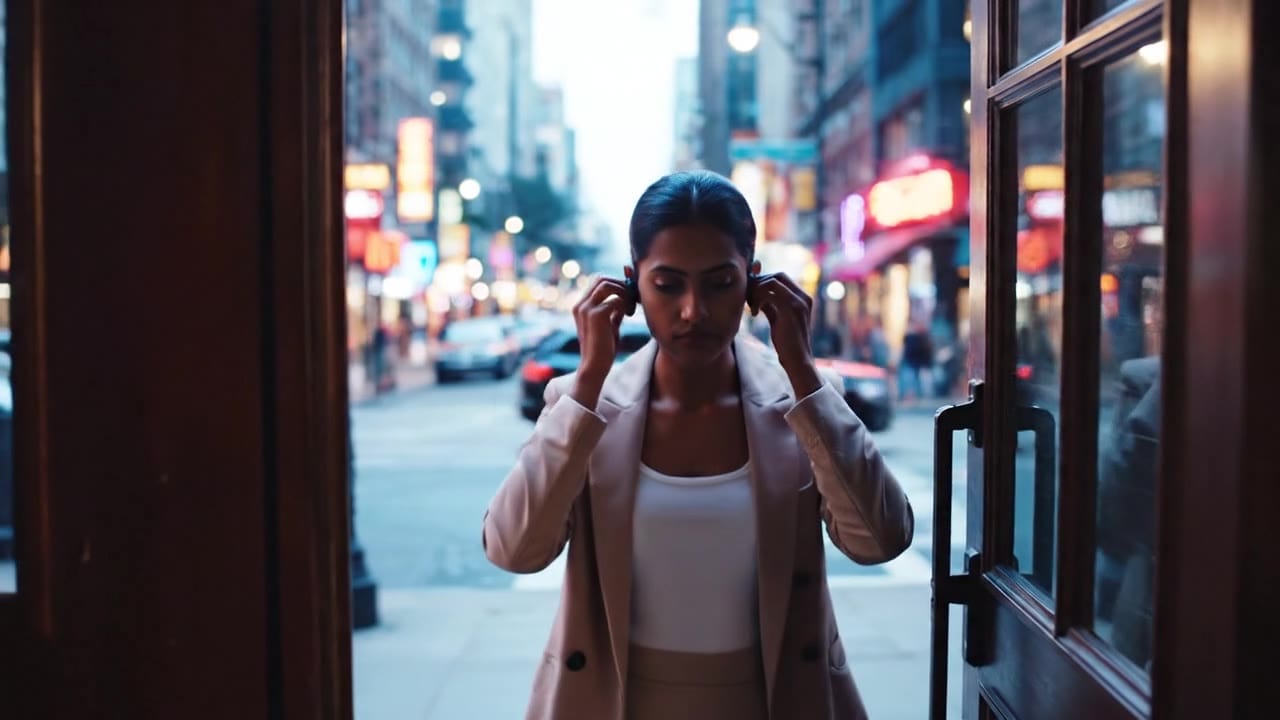
Before you generate
Lock the character, fix the viewpoint, or build the source still before you spend credits on motion.
Veo 3.1 is easiest to control when you write like a shot brief: framing, one camera move, and clear lighting cues.
Two routes, one series. Pick the right one for your stage.
View Veo 3.1 Fast details →These side-by-side comparisons break down price, resolution, audio, speed, and motion style so you can pick the right engine fast.
Each page includes real outputs and practical best-use cases.
Choose Fast when you need cheaper timing tests or reference-to-video drafts; stay on Veo 3.1 when the approved shot needs premium motion, audio and 1080p polish.
Compare Veo 3.1 vs Fast →Choose Kling 3 Pro when longer controlled sequences and storyboard-style planning matter more than Veo’s short premium audio-ready finish.
Compare Veo 3.1 vs Kling 3 Pro →Compare Sora 2 Pro when you are deciding between OpenAI-style concept generation and Veo 3.1’s Google route for polished brand shots.
Compare Veo 3.1 vs Sora 2 Pro →The limits that shape your renders.
Strong at director notes, framing, and camera language for repeatable shots. Great when you need consistent brand composition.
Sound can be generated in the same pass, and references help carry a look across beats. Keep the visual recipe stable for continuity.
Built-in safeguards and best practices for responsible creation with Veo 3.1.
On MaxVideoAI, Veo 3.1 is the current Google AI video model for short cinematic clips, text-to-video prompts, image-to-video runs, reference-guided workflows, native audio, and extension workflows.
Yes. MaxVideoAI routes Veo jobs through supported provider endpoints, so you can render from Europe, the UK and most supported regions without separate Veo contracts.
Yes. Veo 3.1 supports 16:9 and 9:16 across the main routes; 1:1 is exposed for text and first/last-frame runs. Choose 9:16 for Reels/TikTok/Shorts and keep key action centered.
Yes. Google Veo 3.1 can start from a single still in Image-to-Video, use 1-4 reference stills in Reference-to-Video, or bridge a start and last frame.
Start with one clear subject, one action, one camera instruction, and your target format. Veo 3.1 text-to-video prompts usually work best when movement, lighting, and audio cues are explicit.
Base clips are 4/6/8 s. Use Extend from one existing source video; confirm the final duration and resolution controls in the app before generation.
Use reference stills (Nano Banana or your brand library), keep character/setting descriptions consistent, and call out palette/lighting.