← Back to models

Veo 3.1 First/Last – First & Last Frame to Video in MaxVideoAI (720p/1080p, up to 8s)

Veo 3.1 First/Last – Seamless transitions between two frames, with native audio

720p/1080pup to 8 sFirst & last frame + text prompt

Bridge two frames with Veo 3.1 First/Last: upload start and end images, add a prompt, and get a smooth 4/6/8s transition at 720p or 1080p with optional native audio.

Use it for scene bridges, before/after stories, logo/UI morphs, and designed transitions where you already know the start and end composition.

Audio on

Veo 3.1 First/Last – First & Last Frame to Video in MaxVideoAI (720p/1080p, up to 8s)

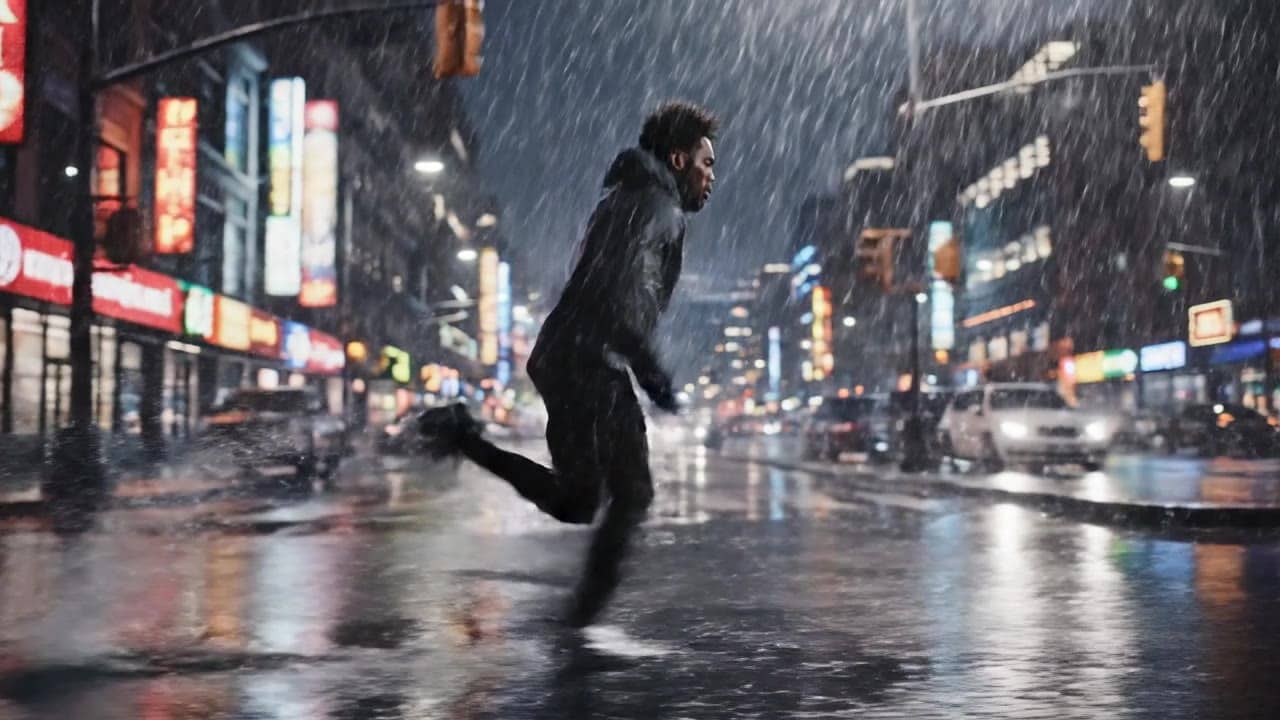
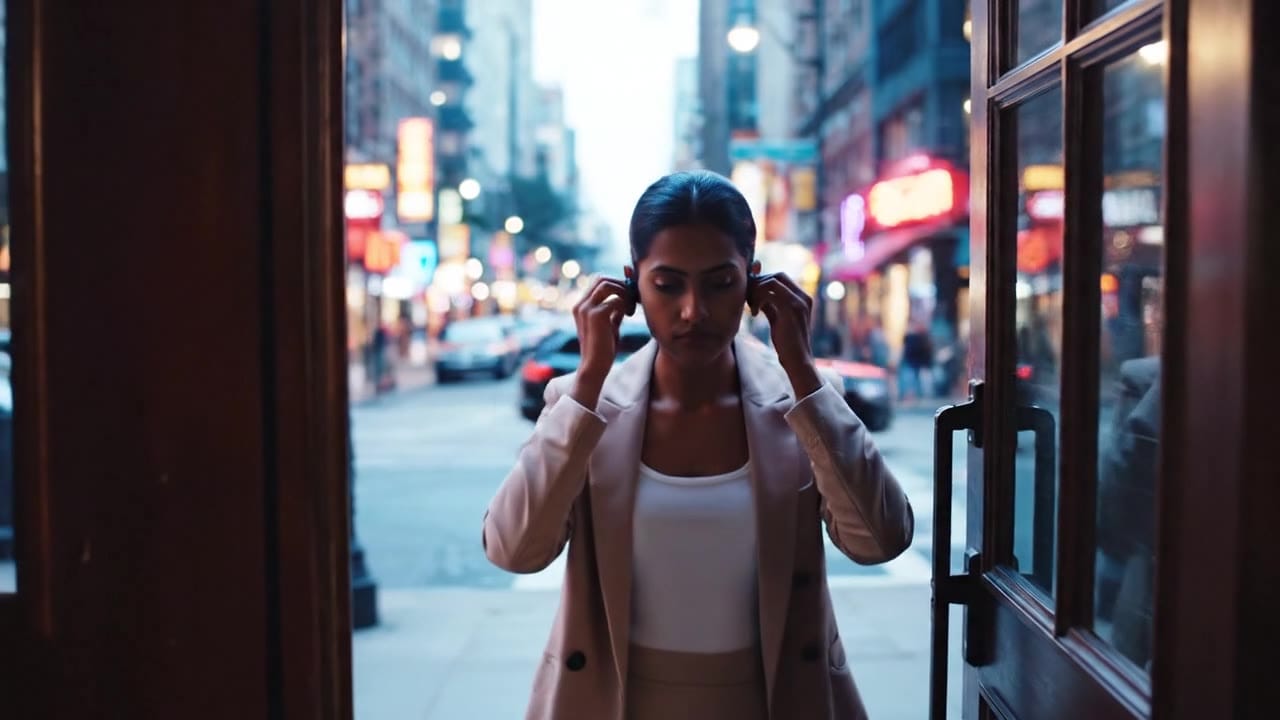
Google Veo 3.1 First/Last demo clip from MaxVideoAI

Why Veo 3.1 First/Last is powerful inside MaxVideoAI

  • Bridges two stills into a continuous, cinematic transition
  • Native audio support when enabled
  • 720p or 1080p, up to ~8 seconds
  • Direction via text prompt to control motion and pacing
  • Audio toggle and pay-per-second pricing (same logic as Veo 3.1)
  • Lives alongside Veo 3.1 and Veo 3.1 Fast in the same UI

Best use cases

  • Before/after transitions: product upgrades, glow-ups, environmental changes
  • Scene bridges in short films, ads or explainers
  • Logo or brand transitions using designed first and last keyframes
  • Stylized morphs between two character designs or environments
  • Camera moves from one layout to another without cutting

What Veo 3.1 First/Last actually is in MaxVideoAI

Google’s Veo 3.1 “first and last frame” / “Frames to Video” mode that interpolates between two images with optional audio.

In MaxVideoAI, you pick 4/6/8s, 16:9/9:16/1:1, 720p or 1080p, upload First + Last frames, toggle audio, and let Veo handle the transition.

In-app flow in MaxVideoAI

  1. 1. Select Veo 3.1 First/Last.
  2. 2. Upload First frame and Last frame images.
  3. 3. Choose duration (4/6/8 s), aspect ratio (16:9 / 9:16 / 1:1), and resolution (720p or 1080p).
  4. 4. Toggle audio on/off.
  5. 5. Write a prompt that describes how to go from A to B (camera, subject, pacing, style, audio).
  6. 6. Preview price per second, then generate.

Real Specs – Veo 3.1 First/Last in MaxVideoAI

Reflects the current first/last-frame route in MaxVideoAI.

Duration & Output

  • UI options: 4 s, 6 s, 8 s
  • Model limit: ~8 s for first/last image-to-video
  • 720p (1280×720) or 1080p (1920×1080)
  • 24 fps cinematic cadence

Aspect Ratios

  • 16:9 – landscape
  • 9:16 – vertical (Reels, TikTok, Shorts)
  • 1:1 – square

Inputs & File Types

  • First frame (required): PNG/JPG/JPEG/WebP/GIF/AVIF
  • Last frame (required): same formats
  • Prompt: describe how to animate between the frames; include action, style, camera, pacing, audio

Audio

  • Audio ON: native ambience/SFX/dialogue across the transition
  • Audio OFF: silent renders, cheaper and ready for your own mix

Pricing

  • $0.52/s at 720p
  • $0.52/s at 1080p

A directed start–end transition engine with optional native audio, priced per second like Veo 3.1.

Example Gallery: Veo 3.1 First/Last

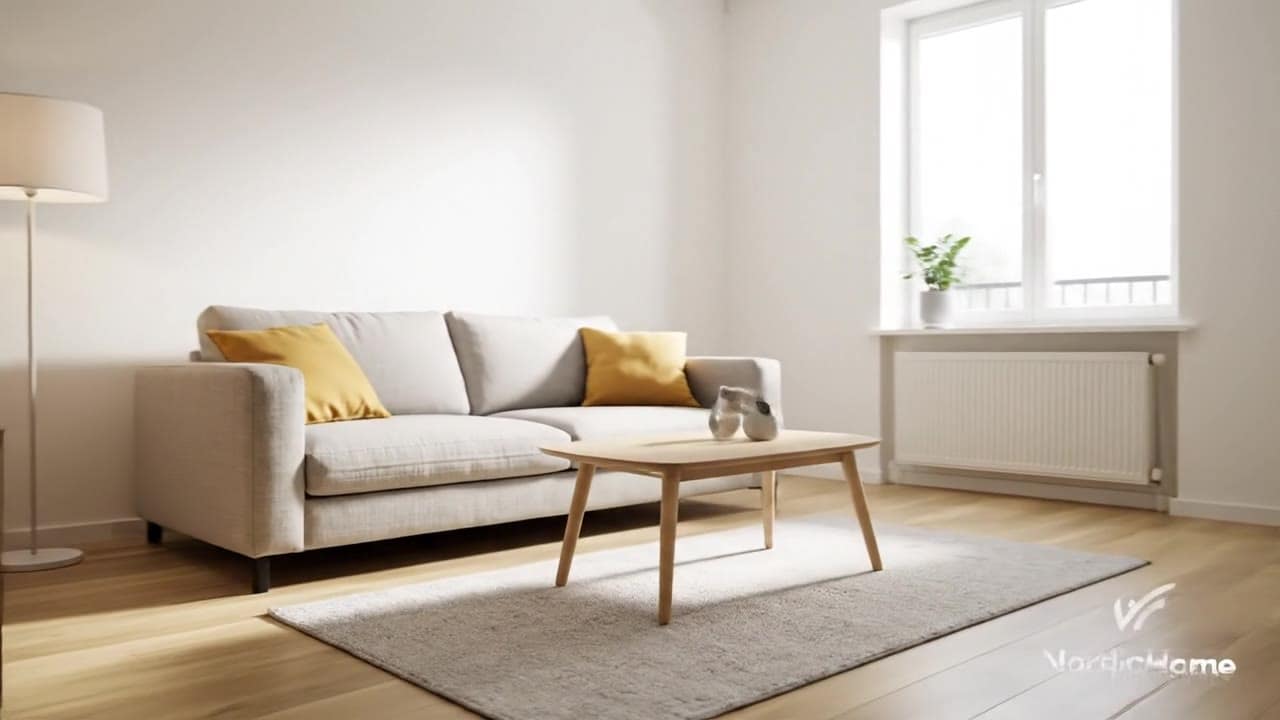
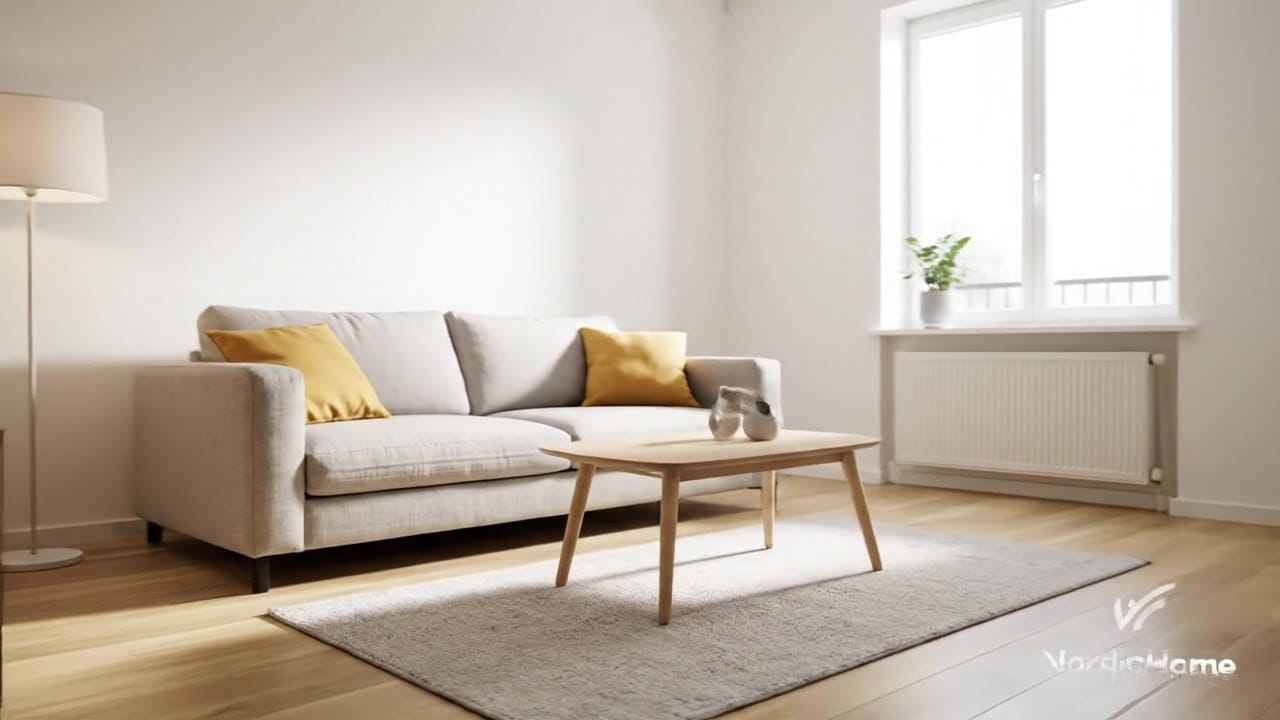
Real transitions: sketch → final render, office → rooftop, wireframe UI → high-fidelity UI. View all Veo 3.1 First/Last examples →

How to prompt Veo 3.1 First/Last

Direct what happens between two images: define the start, the end, the journey, camera, pacing and audio.

1Describe the first frame: subject/environment.
2Describe the last frame: destination or transformation.
3Camera path: dolly, orbit, pan, crane, POV or static morph.
4Changes along the way: lighting, time of day, pose, style.
5Pacing: gentle, brisk, dramatic; mid-point events.
6Audio: ambience/music/short VO or “no dialogue”.

Animate smoothly from the first frame to the last frame over [duration] seconds in [aspect ratio]. Start with [subject/environment in first frame], then gradually [change/move/transform] until we reach [subject/environment in last frame]. Camera: [movement]. Lighting/style: [description]. Audio: [ambience/music/short VO, or “no dialogue”].

Keep it focused on the journey from A → B; mention camera and pacing.

    Demo prompt – “Office to Rooftop” (6s, 16:9)

    Real transitions: sketch → final render, office → rooftop, wireframe UI → high-fidelity UI.

    6s office → rooftop

    Animate a 6 second 16:9 cinematic transition from a bright office desk still to a night rooftop still with the same person.

    Camera: continuous dolly forward that becomes a gentle arc around the character.

    Lighting: warm daylight blending into cool blue/neon highlights.

    Audio: office ambience fading into distant traffic, wind and subtle electronic music, no dialogue.

    • Clear start and end frames
    • Defined camera move and pacing
    • Simple audio story

    Tips & limitations

    • Excellent for transitions when you already know start and end layouts
    • Great for before/after, logo/UI morphs, and scene bridges
    • Native audio matches gradual changes surprisingly well
    • Max duration ~8s; chain clips for longer sequences
    • Requires two images; not for pure text shots
    • Tiny text or logos may warp; keep critical copy as post graphics
    • If start/end frames are radically different, transitions may feel surreal—give Veo some continuity

    Use Veo 3.1 First/Last when you have strong start/end frames and need Veo to handle everything in between.

    Safety, people & likeness

    • Don’t use frames of real public figures (politicians, celebrities, influencers)
    • Don’t impersonate private individuals without consent
    • No explicit sexual content or sexualized minors
    • Avoid hateful, harassing or extremist content
    • Some prompts or images may be blocked or adjusted by provider and MaxVideoAI safety layers

    Use First/Last for fictional characters, brand assets and product imagery—not deepfakes.

    Veo 3.1 First/Last vs Veo 3.1 vs Veo 3.1 Fast

    • Veo 3.1: general text/image→video with ingredients and extend; great for normal shots.
    • Veo 3.1 First/Last: specialized for start/end frame transitions with audio; perfect for scene changes and before/after.
    • Veo 3.1 Fast: cheaper, faster Veo variant; some providers expose Fast First/Last—great for prototyping transitions.
    Compare Veo 3.1 First/Last vs Veo 3.1 / Veo 3.1 Fast →

    FAQ

    Do I have to provide both a first and a last frame?

    Yes. First/Last is built to transition between two images; both are required. Use standard Veo 3.1 for pure text/image → video runs.

    How long can these clips be?

    Up to ~8 seconds in the underlying APIs. MaxVideoAI exposes 4/6/8s presets to keep prompts predictable.

    Does it always generate audio?

    You choose audio on/off per render. Audio on gives native ambience/SFX/VO; audio off is cheaper and ready for your own soundtrack.

    Can I use First/Last for logo or UI transitions?

    Yes. It’s ideal for animating logos or UI layouts from an initial design to a final one. Keep critical tiny text as post-production graphics.

    When should I use normal Veo instead?

    Use standard Veo 3.1 / Veo Fast when you don’t have fixed start/end frames or need multi-beat clips from text/image input.

    Explore other models

    Compare pricing, latency and control surfaces across the MaxVideoAI catalog.

    google-veo

    Google Veo 3.1

    Generate cinematic 8-second videos with native audio using Veo 3.1 by Google DeepMind on MaxVideoAI. Reference-to-video guidance, multi-image fidelity, pay-as-you-go pricing from $0.52/s.

    Explore Veo 3.1 →

    google-veo

    Google Veo 3.1 Fast

    Use Veo 3.1 Fast for affordable, fast AI video generation. Up to 8-second clips with optional native audio—ideal for social formats and iterative testing.

    Explore Veo 3.1 Fast →

    openai

    OpenAI Sora 2

    Create rich AI-generated videos from text or image prompts using Sora 2. Native voice-over, ambient effects, and motion sync via MaxVideoAI.

    Explore Sora 2 →

    Veo 3.1 First/Last in MaxVideoAI is your start–end transition engine—built for moments where you already know the first and last frame.

    Use it to bridge scenes, logos, UI layouts or before/after beats with optional native audio, then stitch everything in one workflow.

    Open Generate