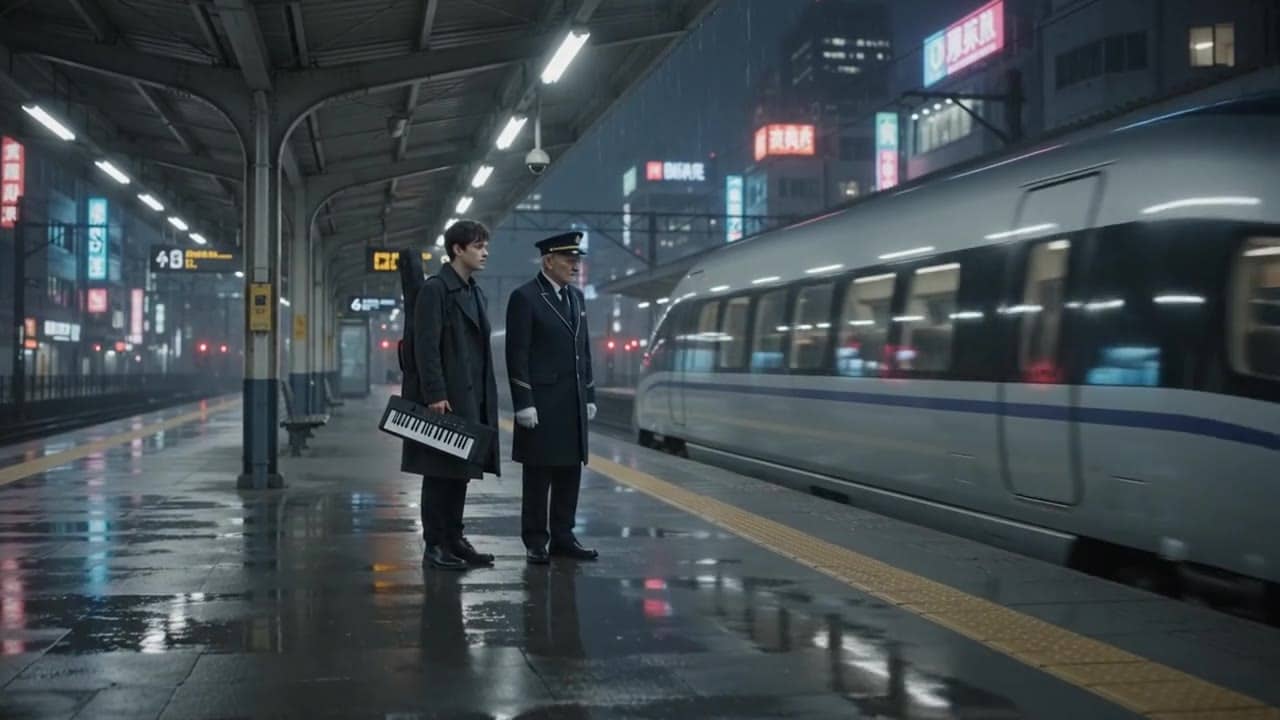
Motion draft
$0.52
4s · 720p
GOOGLE GEMINI OMNI VIDEO PREVIEW
Stateful video editing, up to 10s, 720p output, reference images, source-video edits and native sound direction in one Google Omni workflow.
Use Gemini Omni Flash when the job is not only one prompt-to-video render: start from text, a source image, up to 10 reference images, a short source video, or a previous interaction id when you want a conversational refine pass.
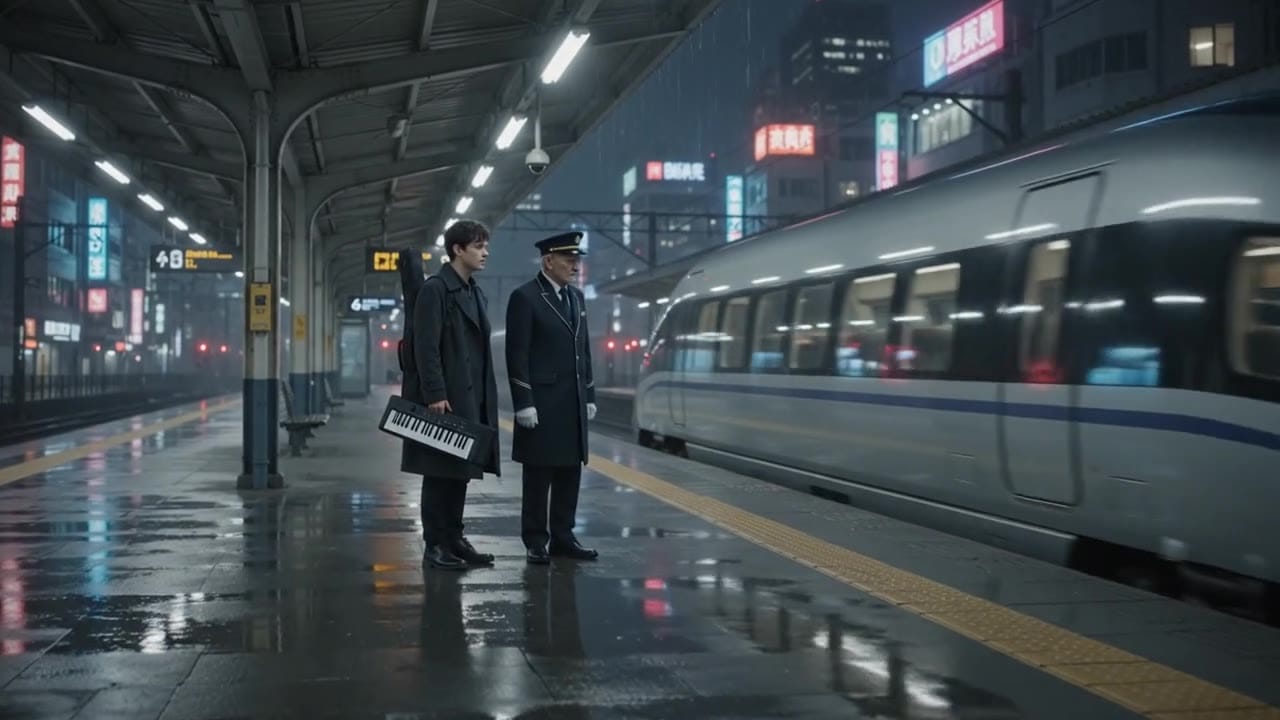
Gemini Omni Flash preview
Multimodal Google video workflow
Stateful refine
Store the interaction id and continue the same Omni output in a follow-up edit.
Reference stack
Guide the scene with one image or up to 10 reference images.
Video edit
Upload a short source clip and describe the change, camera direction and sound direction.
Native sound direction
Give ambience, music, speech or SFX instructions inside the prompt.
Preview limits
Current Google preview constraints are 720p, 16:9 or 9:16, and up to 10 seconds.
Vertex route
MaxVideoAI keeps the implementation on the Google Vertex Interactions path.
Preview 720p totals - review the exact live quote before each generation.
$0.52
4s · 720p
$1.04
Most popular8s · 720p
$1.30
10s · 720p
10s
Up to 10s at 720p
Gemini Omni Flash is a Google preview route. MaxVideoAI displays the customer price before generation and may update pricing as provider SKUs stabilize.
Approved MaxVideoAI renders now show Gemini Omni Flash handling character performance, camera direction and native audio in 16:9.
See what's possible with Gemini Omni Flash.
Jump into the app with one click and reuse the setup.
Dialogue, ambience and SFX generated in sync.
Keep characters, style and scene consistency across sequences.
Built-in guardrails and safety filters for responsible review.
Choose Omni Flash for conversational refine, source-video edits and larger reference stacks. Choose Veo 3.1 when you need the mature Veo route for first/last-frame, extend or higher-resolution delivery.
Keep Store interaction enabled when the output may need follow-up edits. The saved interaction id becomes the bridge for the next Omni pass.
Keep the main prompt short, then add separate sound, camera and edit directions so the UI can preserve them across modes.
Start with one clear subject, one action, sound direction and the 16:9 or 9:16 output shape.
Use one source image when the opening composition or product shape matters.
Use multiple references for identity, wardrobe, product form, palette or scene style.
Upload one short clip and state what must stay before describing what should change.
Reuse the previous interaction id for follow-up changes instead of rebuilding the shot.
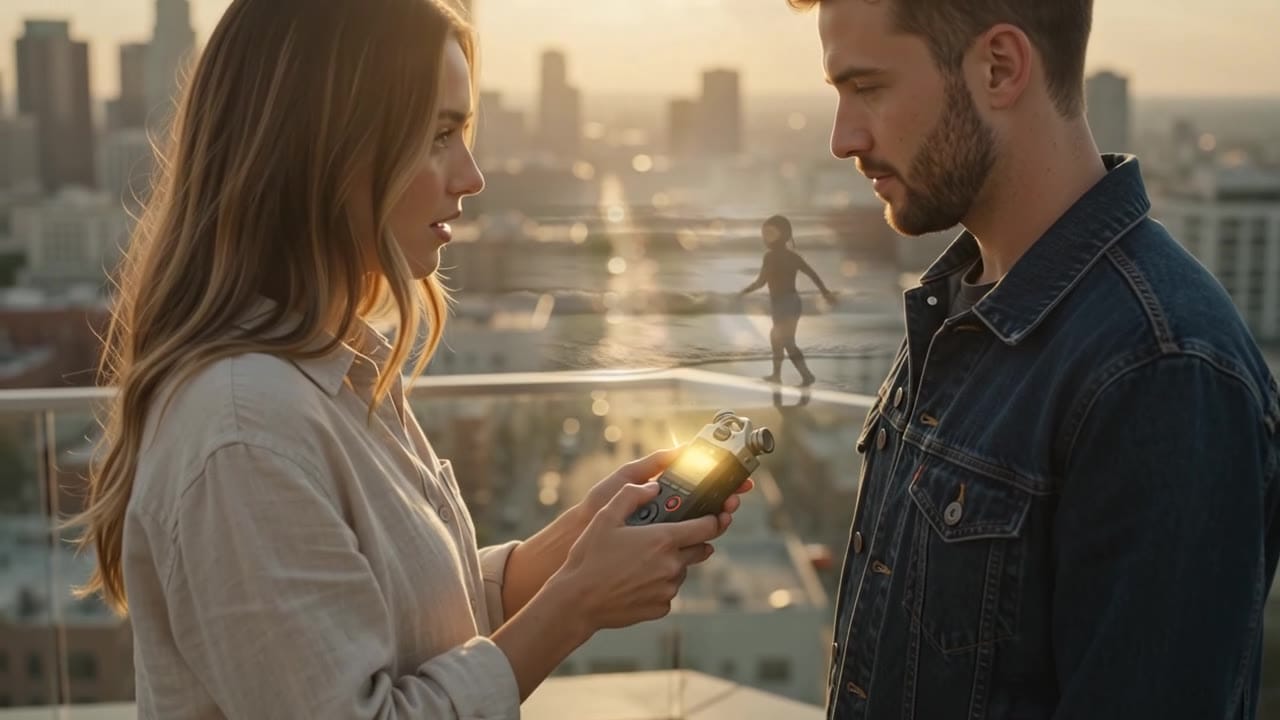
Subject: Two friends on a golden-hour rooftop • Action: A recorder turns a memory into moving light
Camera: Smooth lateral dolly ending on a two-face reaction • Style: Premium cinematic realism, warm backlight, soft city atmosphere
Audio: Rooftop wind, recorder click, ocean echo, one whispered line
Prompt: Golden-hour rooftop above a modern city. Two friends discover a small handheld recorder can turn spoken memories into warm moving light. One friend presses record; translucent images of a childhood beach form briefly in the air between them, then dissolve in the wind. Their faces shift from curiosity to wonder. Premium cinematic realism, warm backlight, no text or logos.
Sound direction: Soft rooftop wind, recorder click, distant city ambience, gentle ocean echo as the memory appears, one whispered line: "That was my favorite day."
Camera direction: Smooth lateral dolly ending on their surprised faces, 50mm lens feel, shallow depth of field, golden-hour backlight.
Best practices, common fixes, and important limitations to help you get the strongest results with Gemini Omni Flash.
These side-by-side comparisons break down price, resolution, audio, speed, and motion style so you can pick the right engine fast.
Each page includes real outputs and practical best-use cases.
Generate cinematic Veo 3.1 videos with text prompts, start-image animation, multi-reference guidance, optional last-frame control, and extend workflows in one unified MaxVideoAI model page.
Compare Gemini Omni Flash vs Google Veo 3.1 →Use Veo 3.1 Fast for affordable text prompts, start-image animation, multi-reference guidance, optional last-frame control, and extend workflows with optional native audio inside one unified MaxVideoAI model page.
Compare Gemini Omni Flash vs Google Veo 3.1 Fast →Create rich AI-generated videos from text or image prompts using Sora 2. Native voice-over, ambient effects, and motion sync via MaxVideoAI.
Compare Gemini Omni Flash vs OpenAI Sora 2 →The limits that shape your renders.
Gemini Omni Flash is exposed as a multimodal video route rather than a Veo-style long-running prediction route.
Built-in safeguards and best practices for responsible creation with Gemini Omni Flash.
Yes. MaxVideoAI implements Gemini Omni Flash as a Google Vertex / Agent Platform Interactions route when the preview route is enabled for the account.
Use it for 720p short videos where text, image references, source-video edits and follow-up conversational refine matter more than 4K delivery or first/last-frame control.
Omni Flash is better positioned for stateful interaction and broader reference/edit workflows. Veo 3.1 remains the stronger page to evaluate first/last-frame, extend and higher-resolution Veo delivery paths.
Yes. Sound is directed through prompt guidance for ambience, music, speech or SFX, subject to the current preview route.
No. The current MaxVideoAI Omni preview route is documented and exposed as 720p output.