
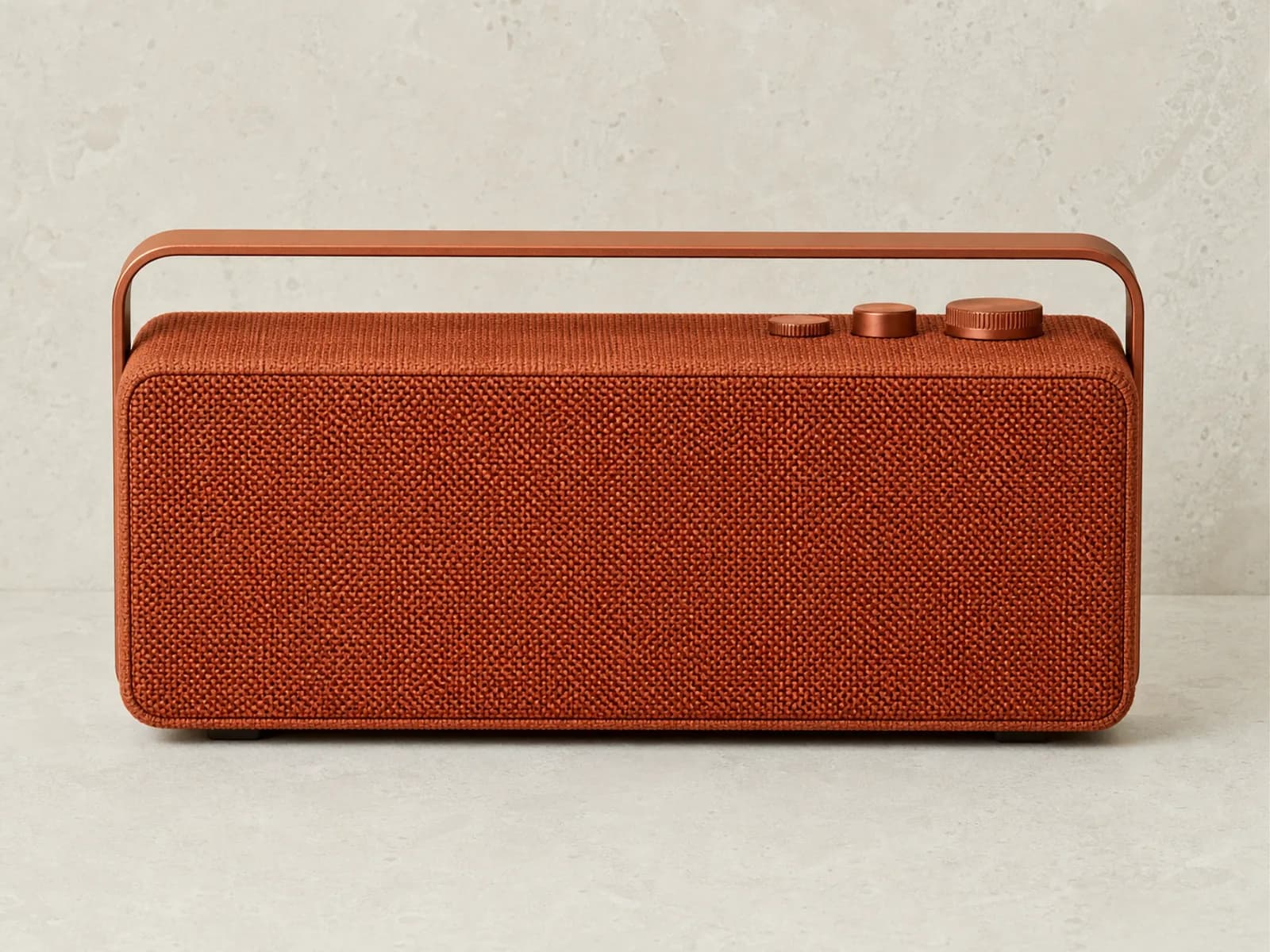
Problem
The asset is close, but the shot is wrong
The subject works, but camera height, framing, or perspective does not. Rebuilding from scratch costs time and risks consistency.
One image in. New camera angle out.
Generate alternate viewpoints from a single shot and keep the best result as your first frame before image-to-video.
Best when the subject is already right and only the viewpoint needs to change.
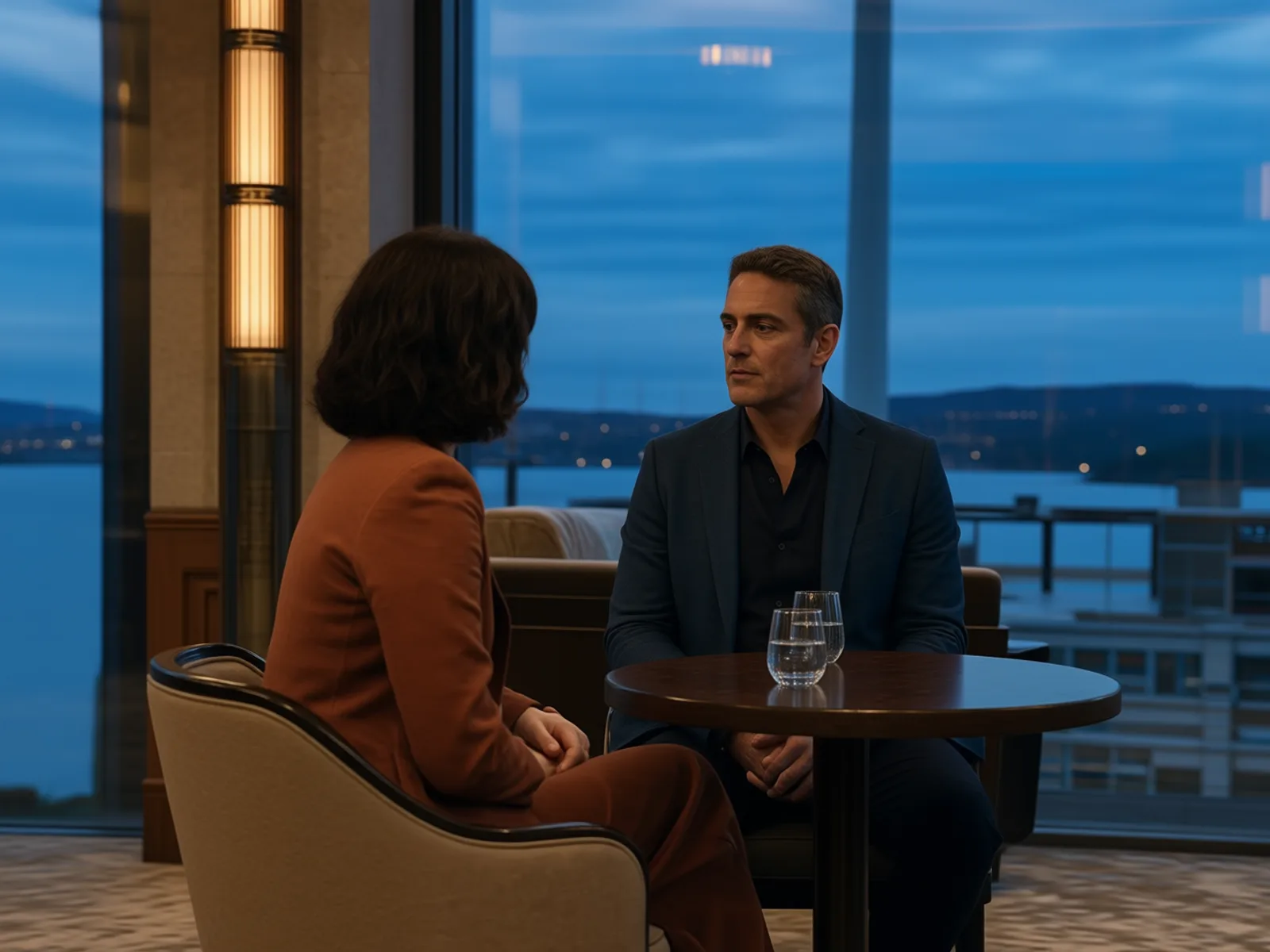
Field on Actor B
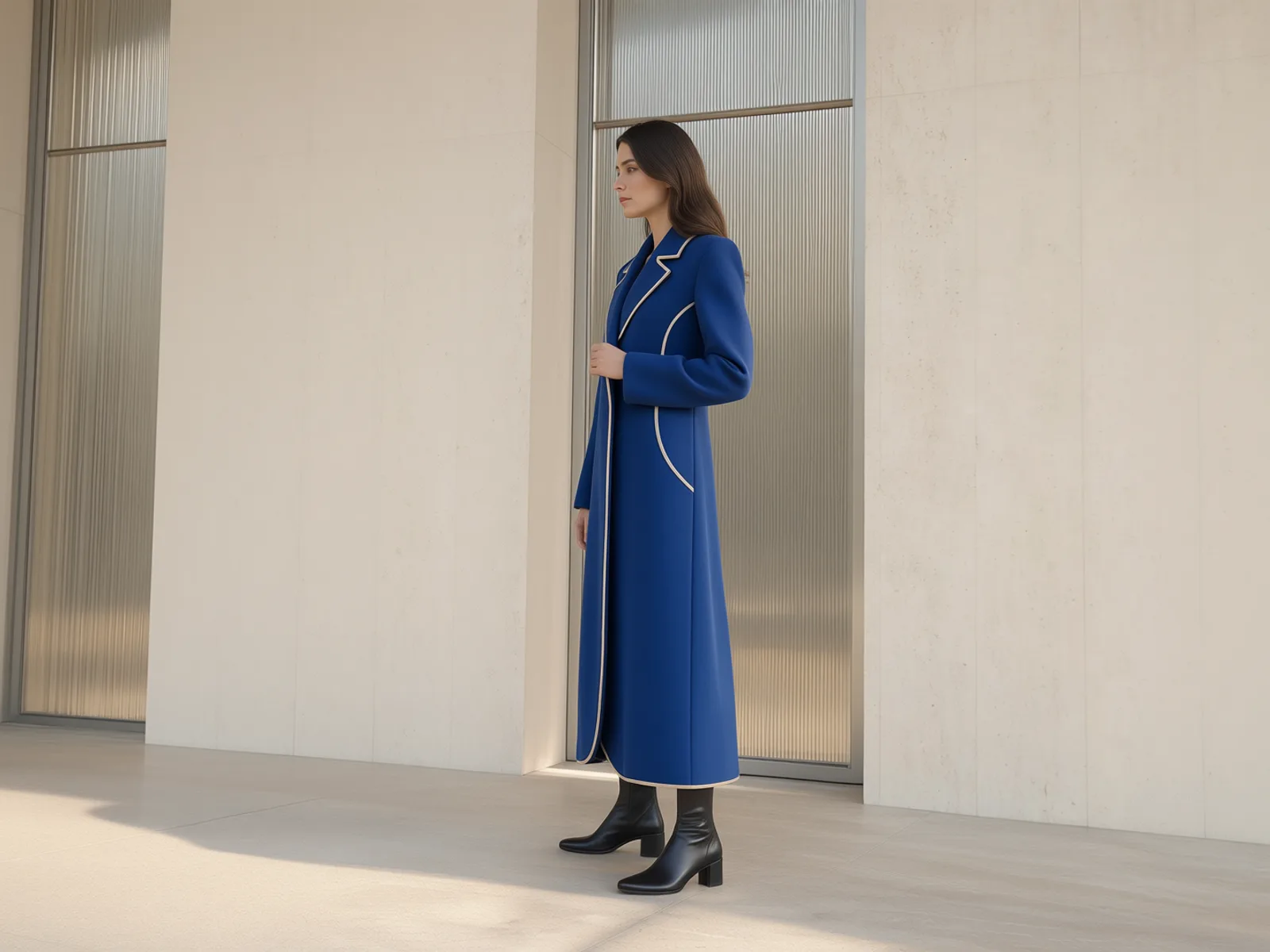
Generated · Field
Drag to explore real camera angles
Selected camera view: Field on Actor B
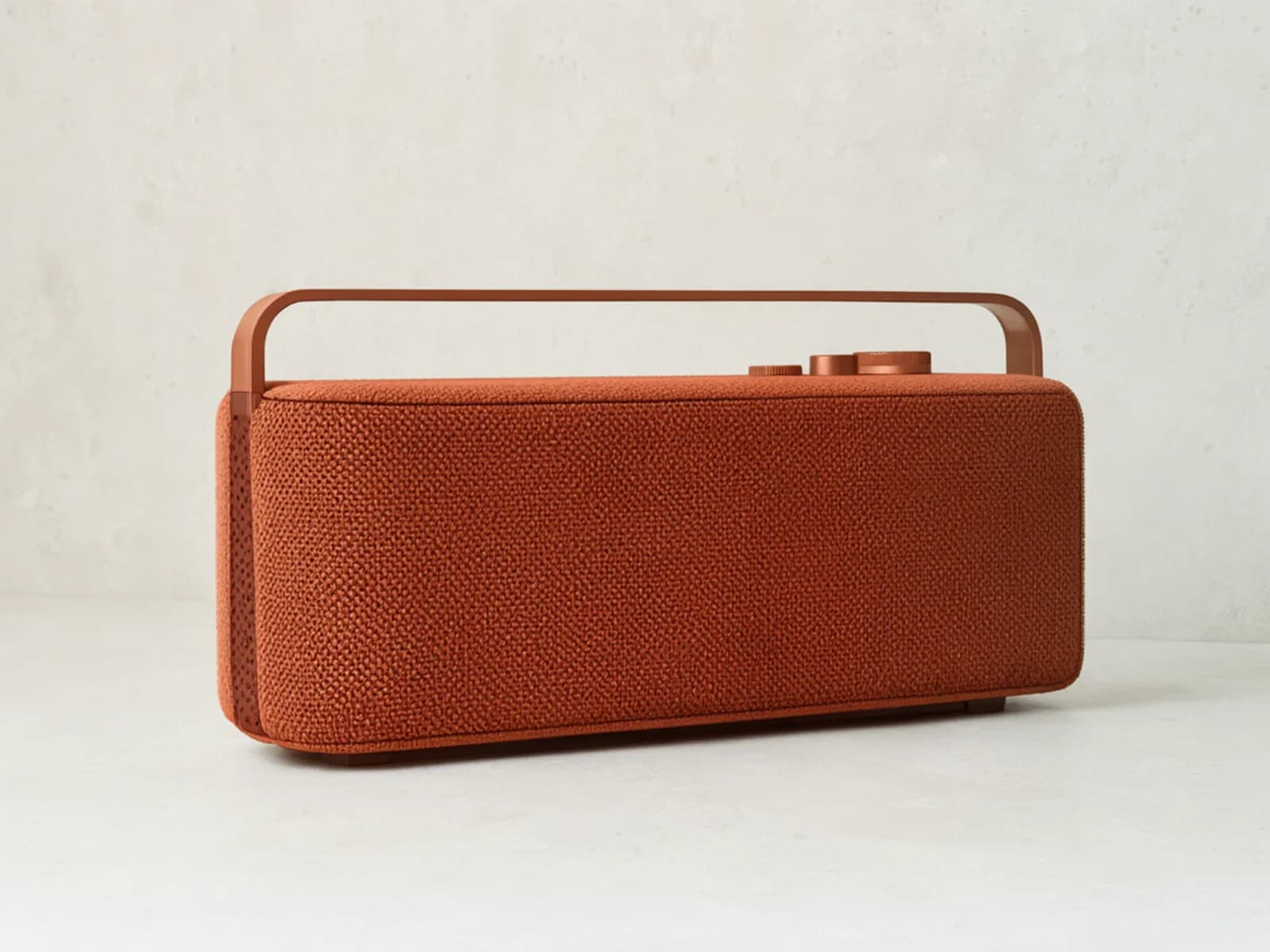
Four generated views from one source image
Problem + solution
When the subject is already right, the faster move is to fix the viewpoint instead of regenerating the whole image.
Problem
The subject works, but camera height, framing, or perspective does not. Rebuilding from scratch costs time and risks consistency.
Solution
Angle lets you keep the source image you already trust, generate a new camera angle, and continue with the version that fits the next step.
Use the better angle as a still, or take it straight into image-to-video.
How it works
Three steps: bring in a usable image, steer the viewpoint, and keep the version that belongs in the next step.
Start from the frame, product shot, or scene still that already has the right subject.
Use the angle picker plus rotation, tilt, and zoom to test cleaner framing fast.
Keep the angle that works, then move it into image edits, storyboards, ads, or video prep.
Practical examples
Use a better angle for the job in front of you
Start from an image you already trust, then steer the viewpoint for product presentation, story coverage, or a stronger ad frame.
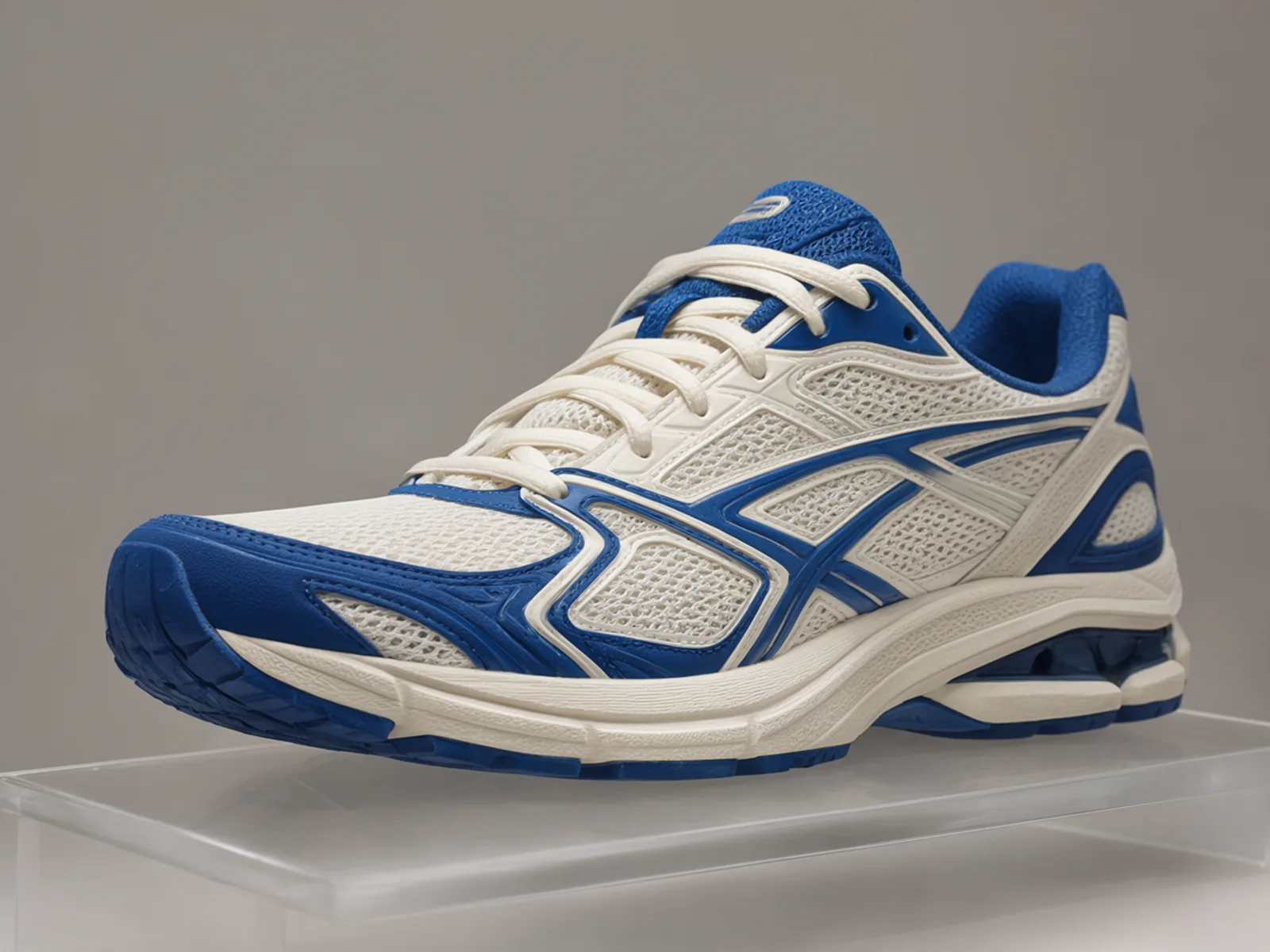
Commerce
Turn a clean catalog frame into a more dimensional product image without changing the product, styling, or scene.
Refine the frame in Image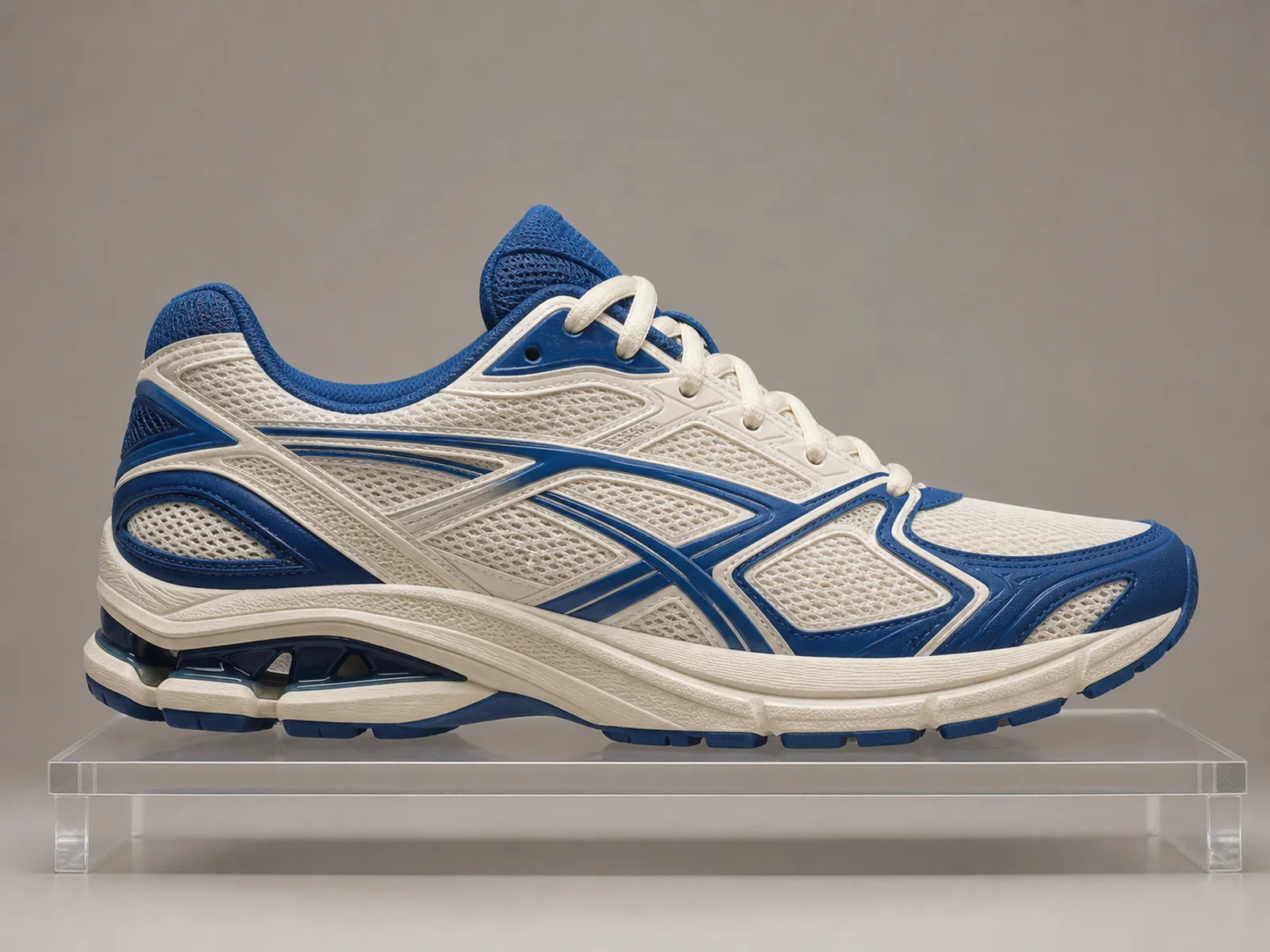
Story / film
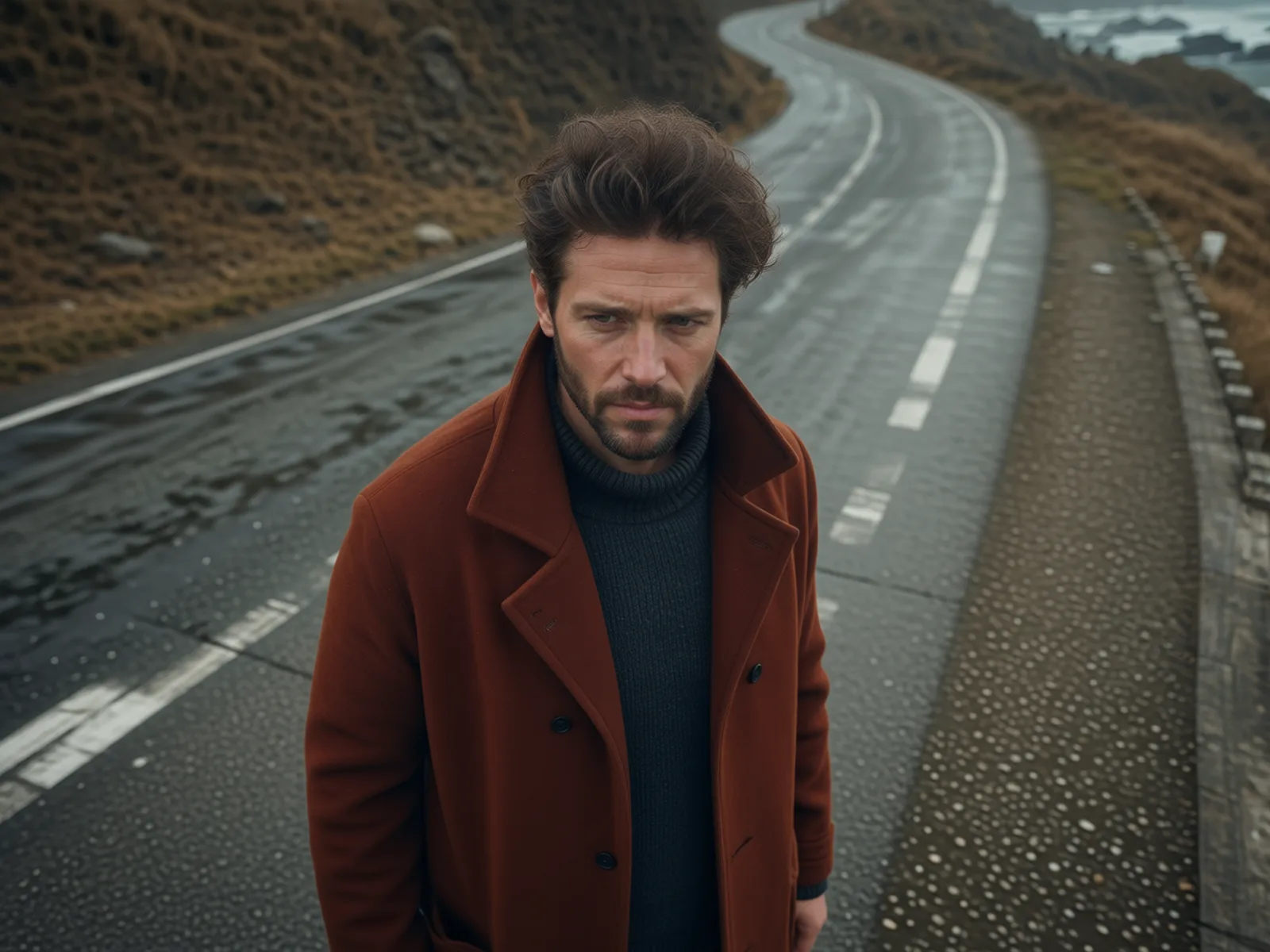
Test perspective before you commit a shot to boards, edits, or an animatic.
Continue with: Storyboarding and previs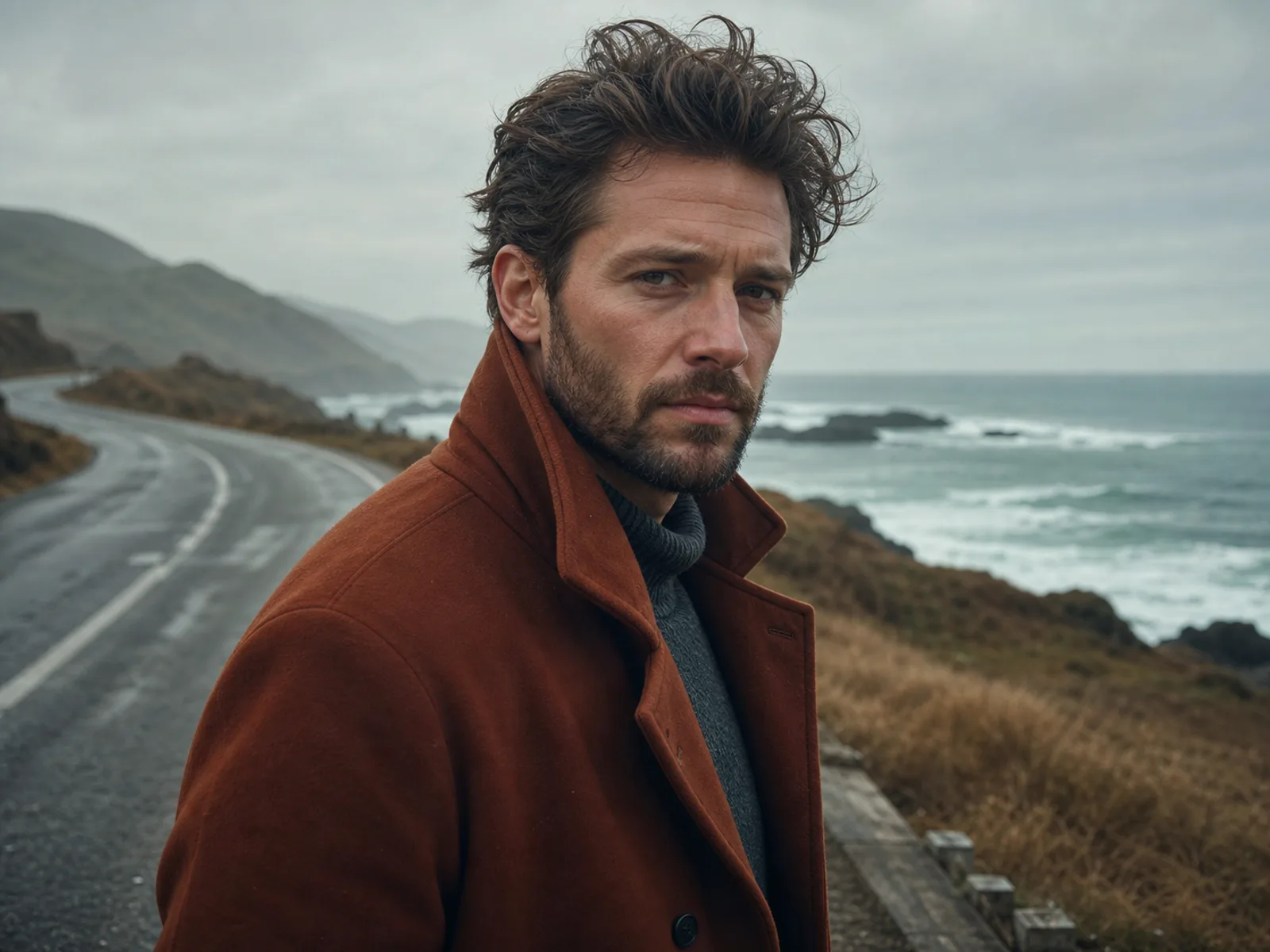
Ad / creative
Explore a different camera viewpoint when the offer is right but the creative needs more depth or presence.
Browse examples

Image-to-video preparation
Angle changes the viewpoint of a still image. Use the selected result as a stronger first frame before you open an image-to-video workflow.
Continue with: Choose the video camera angle before motion starts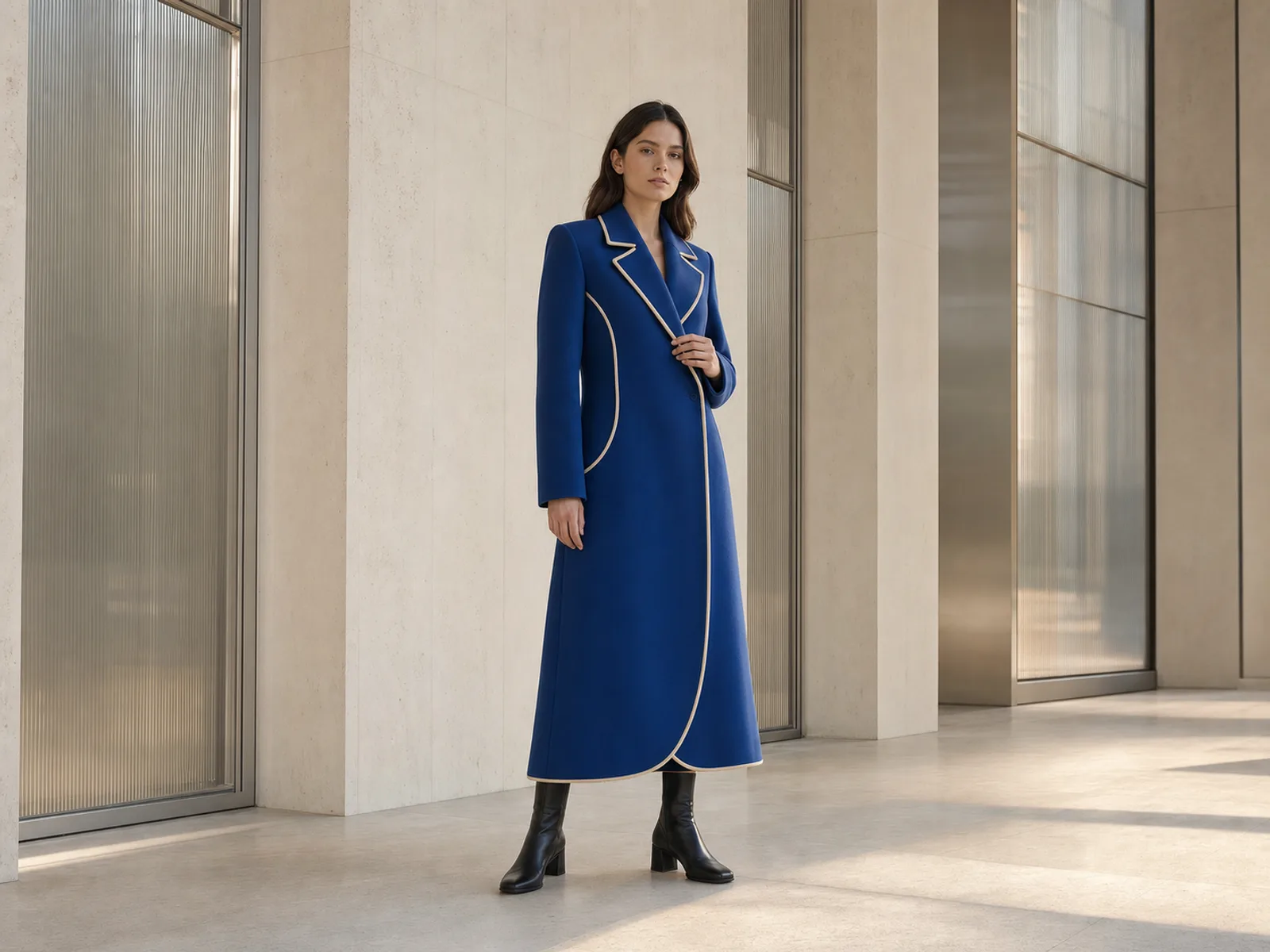
Workspace
The source image, angle controls, and outputs stay side by side so you can compare fast and pick the frame you want.
source image, angle picker, output review
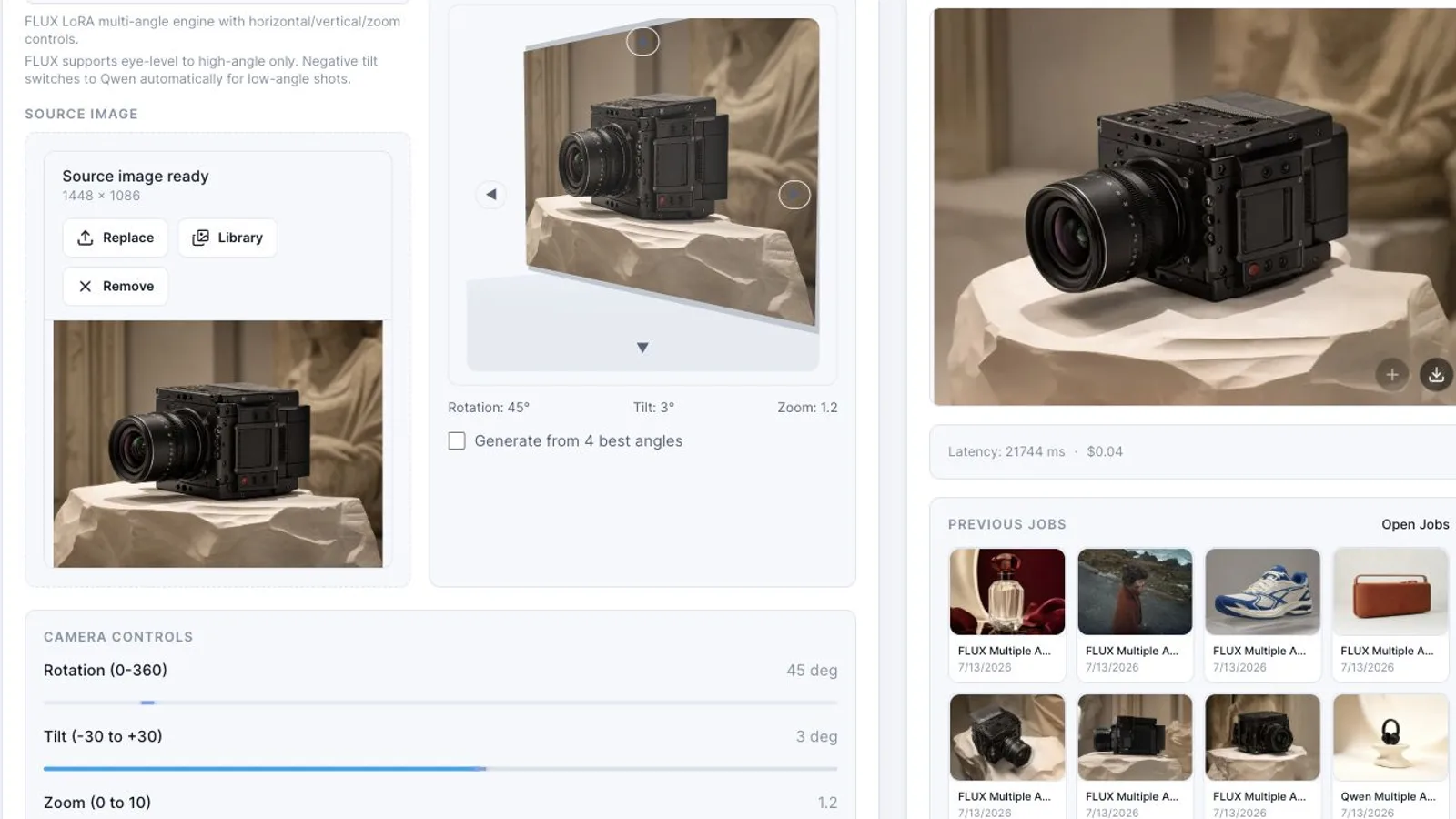
Start from the frame you already trust.
Adjust the angle picker, rotation, tilt, and zoom in one pass.
Compare results before sending one into Image or Video.
Benefits
This is a focused fix for viewpoint problems, which makes the next creative decision faster.
Fix the viewpoint without throwing away a source image that is already close.
Compare alternate angles before you spend more time or budget on full regeneration.
A cleaner first frame gives motion tools a clearer composition to build from.
Get extra product, portrait, or scene views from a single source image.
FAQ
Short answers before you start.
Results depend on the quality and clarity of the source image. Details, proportions, and backgrounds can vary between generated angles, so review each view for consistency before reuse. Angle supports viewpoint exploration for still images and first frames for products, storyboards, ads, and image-to-video; it does not change the camera angle inside an existing video.
Yes. You can generate alternate viewpoints from one source image instead of rebuilding the whole scene.
You start with one image and generate one or more alternate views from it, ready for comparison or reuse.
Yes. It helps you choose a better starting frame before you move into motion.
Yes. It works well for packshots, side angles, and stronger hero views from one product image.
Yes. You can generate several views, compare them, and keep the one that fits the next step best.
Final CTA
Start with one usable image, create alternate views, and carry the best frame into Image or Video.