LUMA MODIFY + REFRAME ROUTE

Luma Ray 3.2

Source-video Modify, Reframe, guide/keyframe control and silent video outputs.

Use Ray 3.2 when a source clip already has usable timing: change the visual treatment with Modify, guide selected moments with a frame or keyframes, or Reframe the approved shot into new delivery ratios. Text-to-video and image-to-video remain useful supporting routes for short silent Luma motion tests.
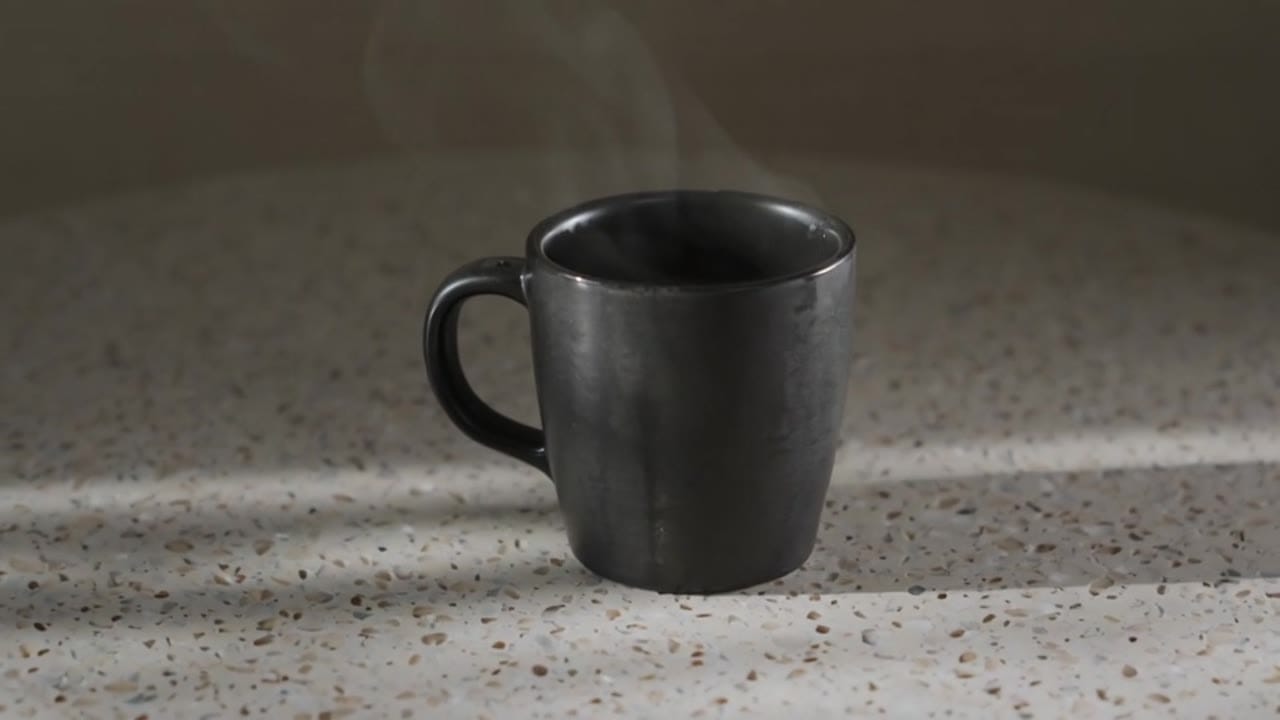
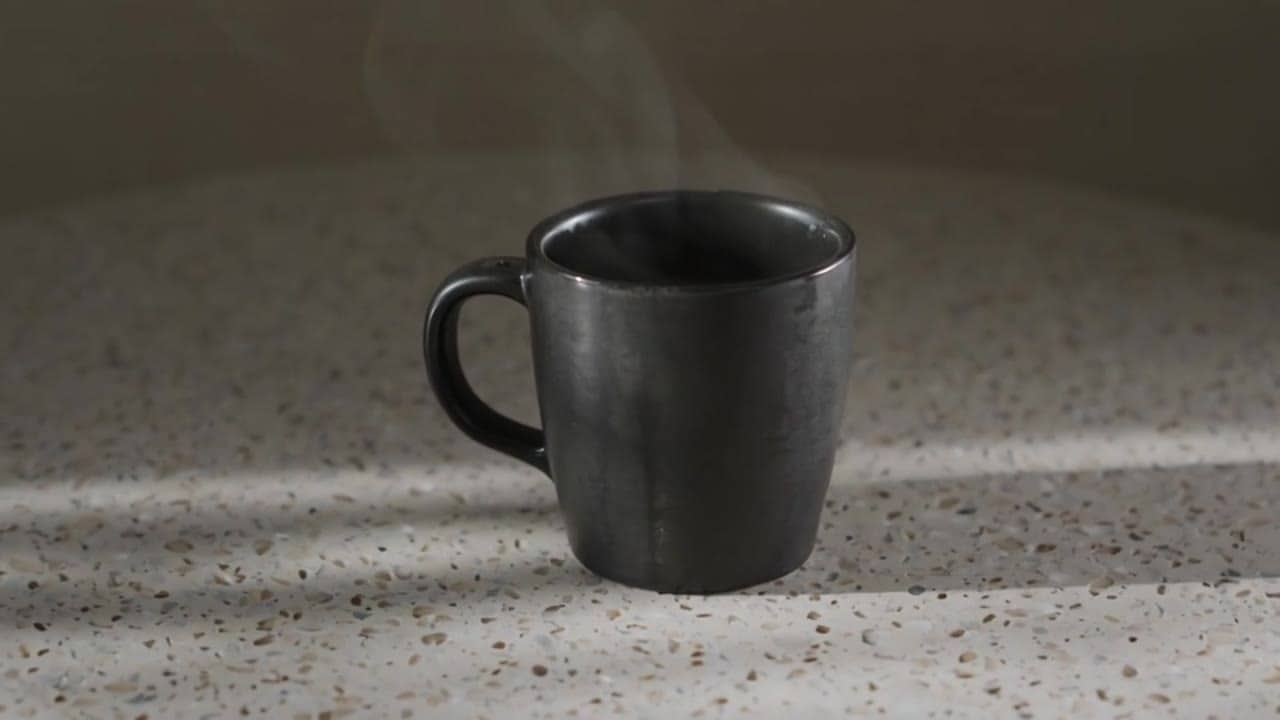
Luma Ray 3.2 source-video Modify and Reframe example
Modify
ReframeSilent video

Luma Ray 3.2 example

Modify and Reframe route for current Luma video

View render

Modify source clips

Keep source timing and camera motion while changing look, subject detail or scene treatment.

Reframe delivery cuts

Outpaint a source clip into vertical, square, landscape or ultrawide formats.

Guide/keyframes

Use a guide frame or indexed keyframes when selected source moments need visual direction.

Text or start image

Generate short silent Luma motion tests when there is no source clip yet.

540p to 1080p

Draft lower, then inspect selected edit or reframe candidates at 720p or 1080p.

Silent by design

Ray 3.2 outputs video only in MaxVideoAI; add music, voice or sound design later.

Luma Ray 3.2 pricing at a glance

Preset Ray 3.2 totals use MaxVideoAI display pricing; exact price appears before generation.

View full pricing

Motion draft

$0.65

5s · 540p

Standard preview

$1.30

Most popular

5s · 720p

Delivery render

$5.20

10s · 1080p

Max duration

30s

Up to 1080p

All Ray 3.2 routes keep the same MaxVideoAI customer quote based on Fal reference pricing plus the configured margin; direct fulfillment does not change the client price.

Luma Ray 3.2 examples

Use examples to study Modify prompts, keyframed source-video changes, Reframe delivery setups and short supporting generation tests.

View all examples

Modify source clips

Study how Ray 3.2 changes a clip without losing its timing.

Reframe delivery

Recreate a vertical, square, or wide cut from the same approved master.

Silent output

Ray 3.2 does not generate native audio on this MaxVideoAI route.

Guide frames

Use one frame or indexed keyframes to steer specific source moments.

Cost control

Validate at 5s / 540p or 720p before 1080p passes.

Modify or Reframe first?

Use Modify when the source timing already works and the look needs to change. Use Reframe when an approved master needs another aspect ratio.

Open app

Need guide frames?

Use one guide frame for a single visual target, or indexed keyframes when specific moments in the source video need direction.

Open Prompt Lab

Need audio?

Ray 3.2 is a silent video route here. Choose it for visual edits and reframes, then add music, voice or sound design downstream.

Check pricing

How to write a strong Ray 3.2 prompt

Write a single edit or reframe brief with source preservation, the requested change, camera/framing intent, duration and resolution.

Tip: for Modify, write the preservation rule first so the prompt does not fight the source video.

How Luma Ray 3.2 uses references

Source video

Upload a clean MP4, MOV or WebM clip when Modify or Reframe should preserve source timing.

Modify

State what stays from the source first, then describe the visual change and strength of reinterpretation.

Guide frames

Use one guide frame or indexed keyframes for Modify when specific moments need visual direction.

Reframe target

Choose the delivery ratio first, then keep the prompt focused on subject priority and canvas fill.

Supporting generation

Use text or a start image only when you need to create a new short silent clip before editing.

Global principles

  • Use one edit goal per source clip.
  • Keep the preservation rule and the requested change separate.
  • Use 10s only when the action needs the extra time.
  • Use generation only when no source clip exists yet.

Engine quirks / what to watch for

  • Source videos make Modify and Reframe practical when timing is already approved.
  • Guide frames and keyframes help target specific moments instead of repainting the whole clip blindly.
  • Short Luma generation remains useful for creating candidate clips before a later edit/reframe pass.
  • Resolution, duration and mode choices directly affect displayed pricing.

Demo prompt — Luma Ray 3.2

Text-to-video

Subject: Armored skull biker  •  Action: Motorcycle approaches and stops
Camera: Low front tracking, slight push-in  •  Style: Cinematic, wet street reflections
Audio: Engine revs, metal clinks, distant thunder

View full prompt
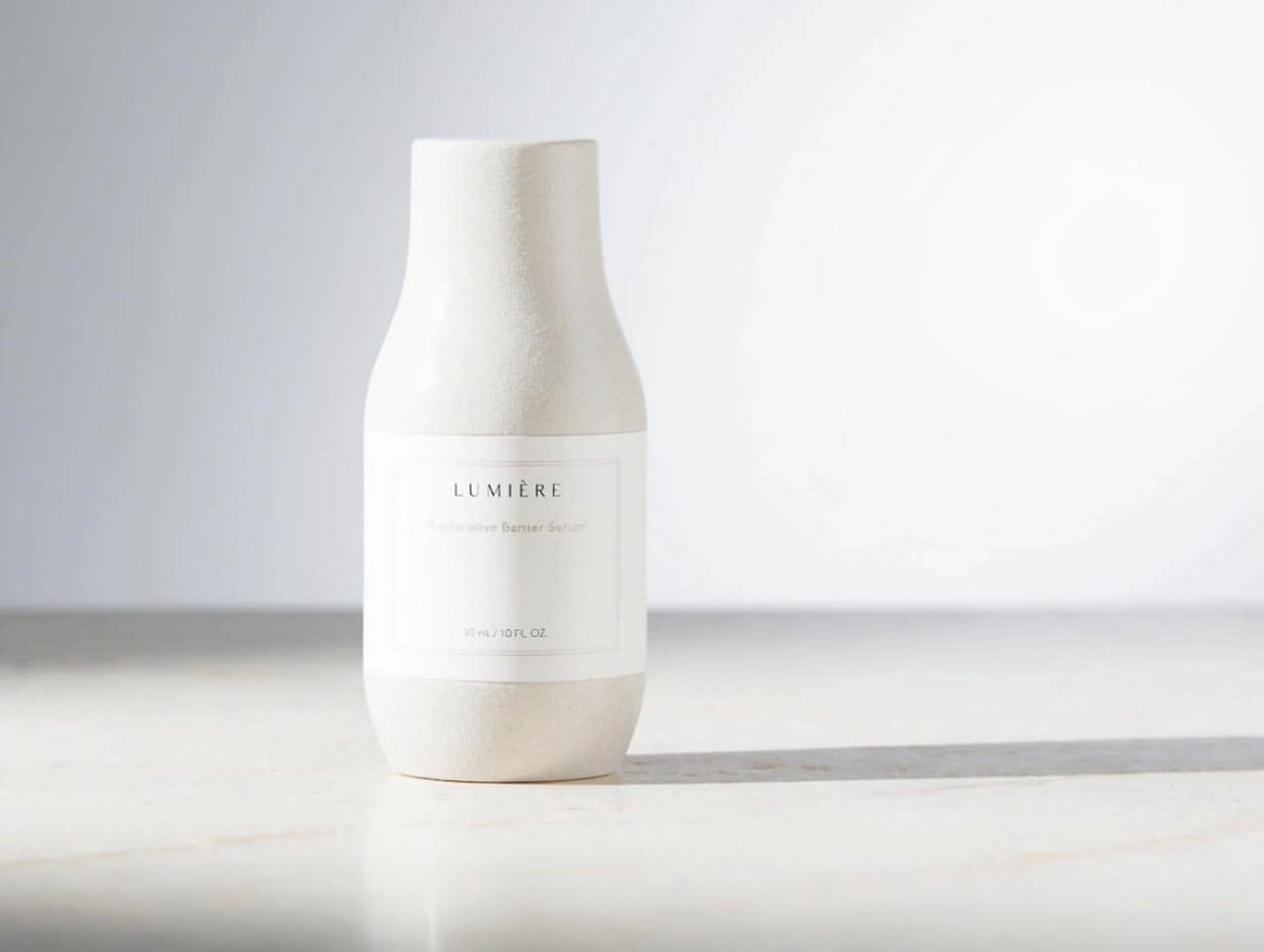
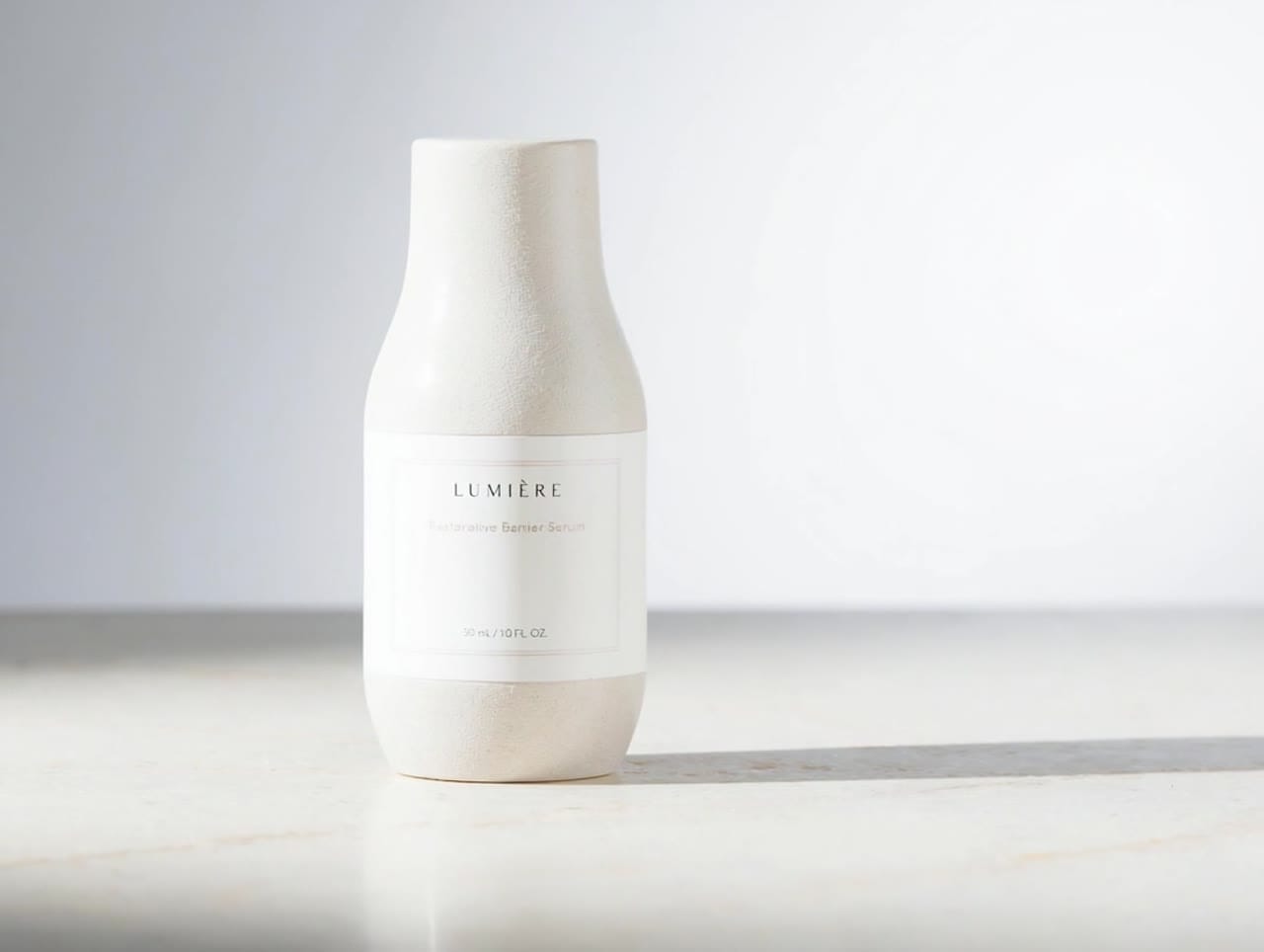
Animate the skincare bottle still with a gentle clockwise camera drift, preserve bottle shape and label order, add soft studio reflections and subtle light movement, calm premium motion.
5s4:3Audio on
Luma Ray 3.2 AI video example: Luma Ray 3.2 demo render
5s4:3
View full render

Practical strengths and boundaries

Best practices, common fixes, and important limitations to help you get the strongest results with Luma Ray 3.2.

What works best

  • Source videos help preserve timing and camera motion for Modify.
  • Guide frames and keyframes are useful when specific source moments need visual direction.
  • Reframe is useful when one approved clip needs several delivery ratios.
  • Good supporting fit for short product, fashion, environment and social motion tests.
  • 1080p is useful for final inspection of selected short clips.

Common problems → fast fixes

  • Feels random / inconsistent → simplify to: subject + action + camera + lighting. Re-run 2–3 takes.
  • Motion looks weird → reduce movement: one camera move, slower action, fewer props.
  • Subject drifts off-brand → start from a reference image and lock palette + lighting.
  • Text looks wrong → avoid readable signage, tiny UI, micro labels. Keep text off-screen.

Hard limits to keep in mind

  • Generation duration is 5s or 10s.
  • Resolution choices are 540p, 720p and 1080p.
  • Ray 3.2 output is silent in MaxVideoAI.
  • It is not positioned as the best all-purpose choice when native audio, dialogue or lip sync is required.
  • Provider capacity can vary during peak usage.

Ray 3.2 specs

The limits that shape your renders.

View full specs

Price / second

540p $0.13/s720p $0.26/s1080p $0.52/s

Text-to-Video

Supported

Image-to-Video

Supported

Video-to-Video

Supported (Ray 3.2 Modify and Reframe source-video routes)

First/Last frame

Supported (I2V end frame plus Modify guide/keyframes up to 64 anchors)

Start / reference image

Supported through guide frames and indexed Modify keyframes

Reference video

Supported for Modify and Reframe source-video workflows

Max resolution

1080p

Max duration

10s generation; source clips up to 30s for Modify/Reframe intake

Aspect ratios

9:16 / 3:4 / 1:1 / 4:3 / 16:9 / 21:9

FPS options

24 fps

Output format

MP4

Camera / motion controls

Prompt, source-video preservation, guide frames and Modify keyframes

Watermark

No (MaxVideoAI)

Edit and reframe surface

Ray 3.2 is exposed first for source-video Modify and Reframe, with generation available as a supporting route.

Details
  • Modify for source-video visual changes.
  • Guide frame or indexed keyframes for directed Modify passes.
  • Up to 64 Modify keyframe anchors where the provider route accepts them.
  • Reframe for aspect-ratio delivery variants.
  • Text-to-video for prompt-only silent motion tests.
  • Image-to-video when one opening still should anchor the clip.
  • 5s and 10s durations.
  • 540p, 720p and 1080p output choices.

Operational notes

Details
  • MaxVideoAI keeps Ray 3.2 requests on supported settings.
  • Provider capacity can vary during peak usage.
  • All Ray 3.2 public modes keep the Fal-reference customer quote with margin.
  • Internal routing does not change the price shown to the client.

Safety and likeness

Built-in safeguards and best practices for responsible creation with Luma Ray 3.2.

  • Use original characters and owned references.
  • Avoid real people, celebrities and protected characters.
  • Do not use someone's likeness without consent.
  • Avoid copyrighted franchises, logos and protected IP.

FAQ

What does Luma Ray 3.2 support in MaxVideoAI?

The model page focuses on source-video Modify, Reframe, guide/keyframe editing, plus short text-to-video and image-to-video when you need a new silent Luma clip.

When is Ray 3.2 the strongest choice?

Use it when you already have a usable source video and need to change the visual treatment, guide specific moments, or create new delivery ratios. For native soundtracks, dialogue or lip sync, choose an audio-capable engine instead.

Does the page expose HDR or EXR options?

No. Public marketing copy stays on supported generation settings until any advanced options are product-approved.

How is pricing shown?

Displayed examples use MaxVideoAI pricing with margin. The exact app quote appears before generation.

Does Ray 3.2 generate audio?

No. Treat Ray 3.2 renders as silent video outputs and add voice, music or sound design later.