
OpenAI Sora 2 camera movement example: Scene 1 — 0-3s — Close-up
This OpenAI Sora 2 text to video example shows Scene 1 — 0-3s — Close-up. It highlights audio-enabled output and camera motion control with 12-second timing · 16:9 output.
Prompt breakdown
Prompt used to generate this render.
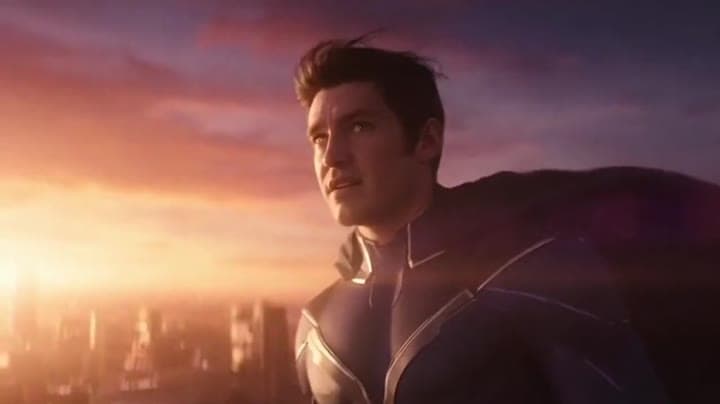
Scene 1 — 0-3s — Close-up actor speaking “Close-up on a superhero standing on a rooftop at sunset. Strong wind. The camera moves in a slow arc around him. The actor says, in a clear cinematic voice: Alright… this is it.…Show full promptHide full prompt
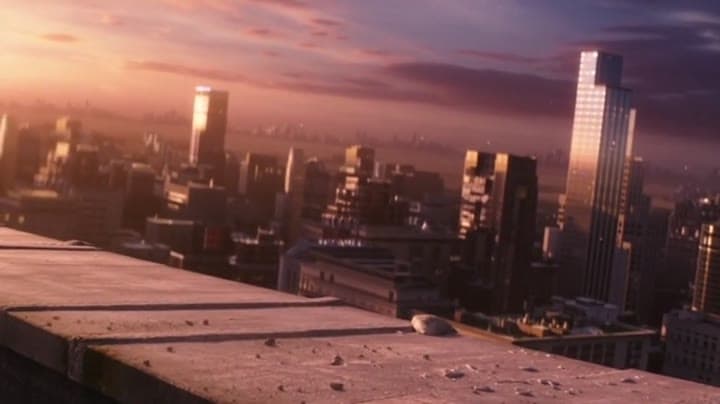
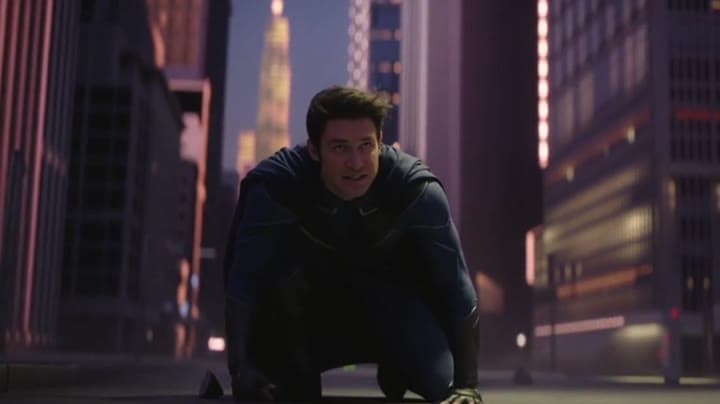
Scene 1 — 0-3s — Close-up actor speaking “Close-up on a superhero standing on a rooftop at sunset. Strong wind. The camera moves in a slow arc around him. The actor says, in a clear cinematic voice: Alright… this is it. Clean Hollywood sound mix, natural dialogue, wind ambience.” Scene 2 — 3-6s — Jump + shout (short line) “A low-angle shot as the superhero jumps off the rooftop, debris lifting with him. Fast motion. He shouts, loud over the wind: Let’s move! Strong impact sound, bass-heavy jump, fast whooshes.” Scene 3 — 6-9s — High-speed flight + mid-air line “Tracking shot flying between skyscrapers at high speed. Neon reflections on the suit, big parallax, motion blur. The actor says, slightly breathless but clear: I’m right behind you! Wind rushing sound, cinematic whooshes.” Scene 4 — 9-12s — Hero landing + final line “The hero lands in a shockwave of dust and energy. Camera pushes in fast. Close-up, dramatic light. The actor says, confident and calm: Time to finish this. Impact thud, debris, subtle heroic music swell.”
Workflow
Text to video
Camera
Tracking, Close Up
Output
12s · 16:9
Recorded render cost
$1.56
Audio
Enabled
Constraints
Text To Video, Audio Enabled, Camera Move
Prompt improvement notes
Note 1
Keep the subject, camera move, lighting, duration, aspect ratio and audio requirement grouped so the render has one clear production brief.
Note 2
Change one variable at a time when cloning this prompt: model, duration, camera motion or reference input. That makes quality and price differences easier to compare.
Note 3
Add a short negative prompt if you need to block text overlays, logos, distorted hands, face warping or unwanted camera shake.
Compare this model
Review this example beside nearby engines before choosing a render path.
Why OpenAI Sora 2 fits this shot
OpenAI Sora 2 handles cinematic narratives with lip-sync and audio - ideal for hero renders.
Audio native
Cinematic
Remix
Key frames
Related examples
View all examples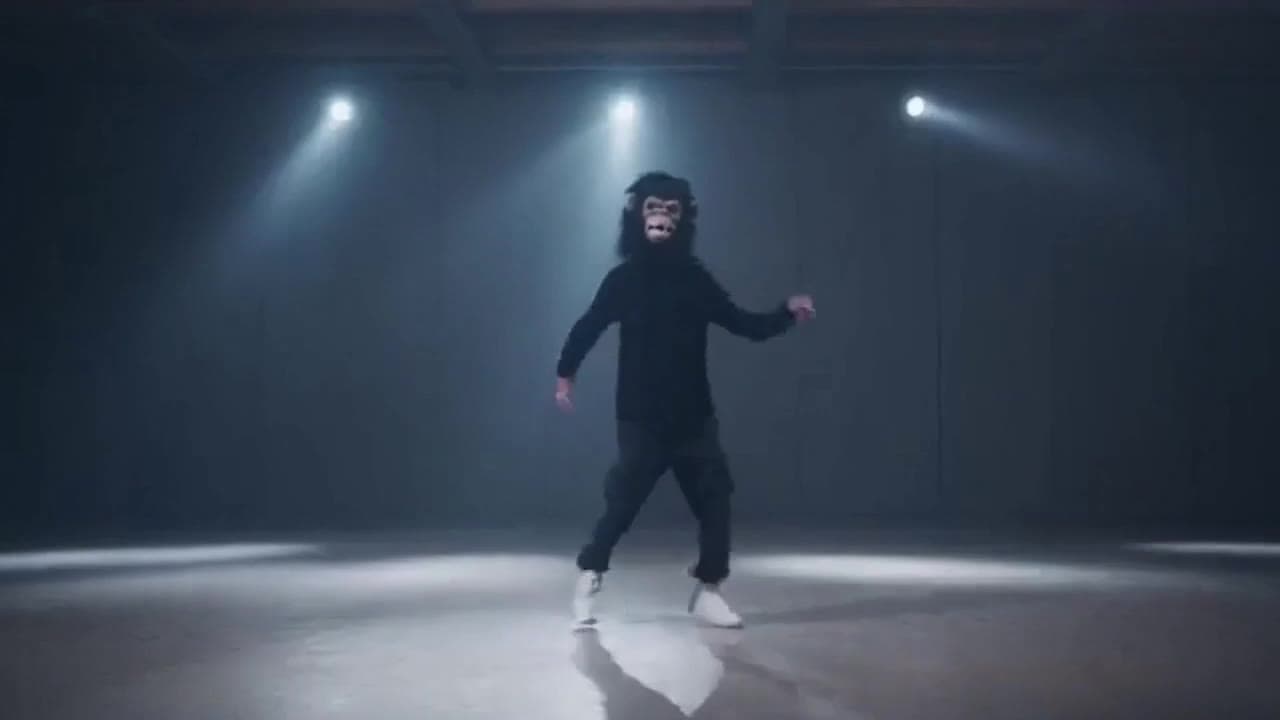 OpenAI Sora 2
Sora 2 gorilla dance video example with strobe lighting
This Sora 2 watch page shows a gorilla-mask dance prompt rendered with strobe lighting, changing camera angles, native audio and a 16:9 output.
 OpenAI Sora 2
Sora 2 mouse hallway escape video example
This Sora 2 page showcases a mouse-style hallway escape prompt with audio, obstacle timing and a compact narrative sequence.
 Kling 3 Pro
Kling 3 Pro neon street multi-shot example
This Kling 3 Pro example demonstrates a multi-shot neon street sequence with rain reflections, native audio and structured scene anchors.
 Kling 3 Standard
Kling 3 Standard rainy neon street multi-shot example
This Kling 3 Standard page shows a rainy neon street prompt with multi-shot structure, audio-enabled pacing and cinematic reflections.