
Luma Ray 2 Flash camera movement example: studio camera move
This Luma Ray 2 Flash text to video example shows studio camera move. It highlights camera motion control with 5-second timing · 16:9 · 720p output.
Prompt breakdown
Prompt used to generate this render.
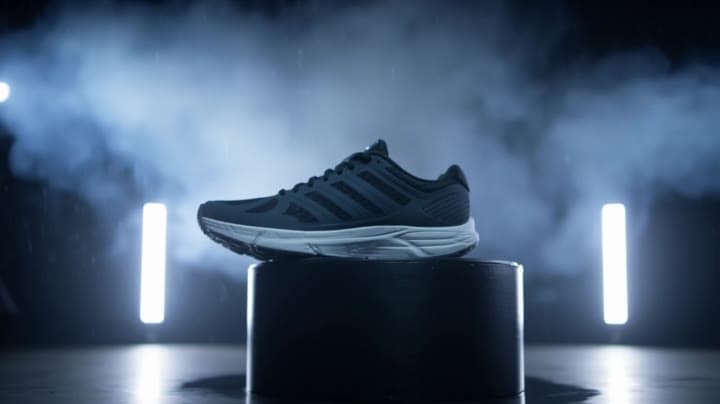
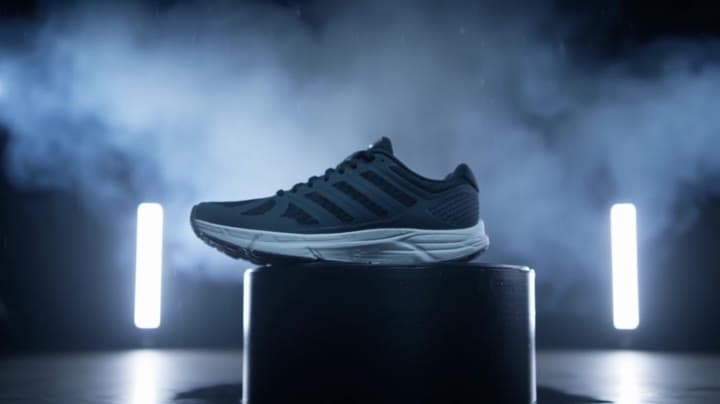
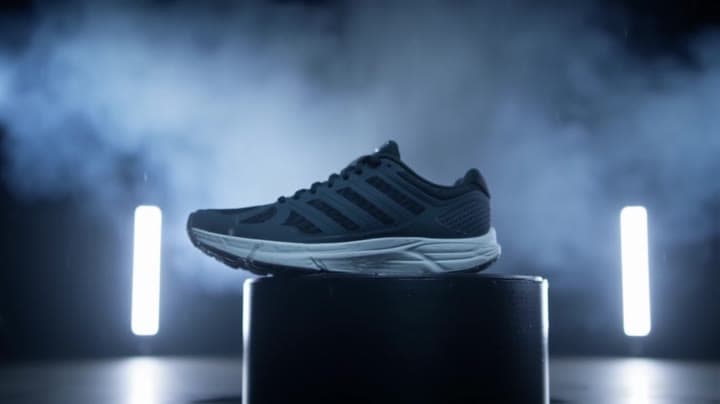
**Scene (plain language):** A premium sneaker floats on a matte black pedestal inside a dark studio with drifting atmosphere haze. The shoe slowly rotates while fine water droplets shimmer on the surface. Distinctive vi…Show full promptHide full prompt
**Scene (plain language):** A premium sneaker floats on a matte black pedestal inside a dark studio with drifting atmosphere haze. The shoe slowly rotates while fine water droplets shimmer on the surface. Distinctive visual anchors: glossy black floor reflection, soft volumetric light beams, metallic set panels in the background. **Cinematography:** * Camera shot: medium close-up product shot, slightly low angle * Camera motion: slow orbital tracking move * Lens look + depth of field: 50mm, clean commercial look, shallow DOF * Lighting + palette: controlled studio key light, silver highlights, deep blacks, cool blue rim light **Actions (beats):** * Beat 1: the sneaker rotates slowly above the pedestal * Beat 2: a mist puff rolls behind it as tiny droplets catch the light * Beat 3: in the final second, the shoe settles facing camera in a clean hero angle **Constraints:** No logos, no readable text, no subtitles/overlays.
Workflow
Text to video
Camera
Tracking, Close Up
Output
5s · 16:9 · 720p
Recorded render cost
$0.52
Audio
Off
Constraints
Text To Video, Camera Move, Tracking
Prompt improvement notes
Note 1
Keep the subject, camera move, lighting, duration, aspect ratio and audio requirement grouped so the render has one clear production brief.
Note 2
Change one variable at a time when cloning this prompt: model, duration, camera motion or reference input. That makes quality and price differences easier to compare.
Note 3
Add a short negative prompt if you need to block text overlays, logos, distorted hands, face warping or unwanted camera shake.
Compare this model
Review this example beside nearby engines before choosing a render path.
Why Luma Ray 2 Flash fits this shot
Use Luma Ray 2 Flash as a previous-generation fast Luma route for legacy drafts, Modify, and Reframe checks, while starting new Luma edit work on Ray 3.2.
Image input
9s max
Key frames
Related examples
View all examples Kling 3 Pro
Kling 3 Pro neon street multi-shot example
This Kling 3 Pro example demonstrates a multi-shot neon street sequence with rain reflections, native audio and structured scene anchors.
 Kling 3 Standard
Kling 3 Standard rainy neon street multi-shot example
This Kling 3 Standard page shows a rainy neon street prompt with multi-shot structure, audio-enabled pacing and cinematic reflections.
 Google Veo 3.1 Fast
Veo 3.1 Fast studio interview push-in example
This Veo 3.1 Fast watch page shows a studio interview prompt with a controlled push-in camera move, native audio and documentary-style staging.
 Wan 2.6 Text & Image to Video
Wan 2.6 rainy neon thriller sequence example
This Wan 2.6 page shows a rainy neon thriller prompt with multi-shot direction, smooth camera work and audio-enabled pacing.