
Luma Ray 2 Flash camera movement example: city camera move
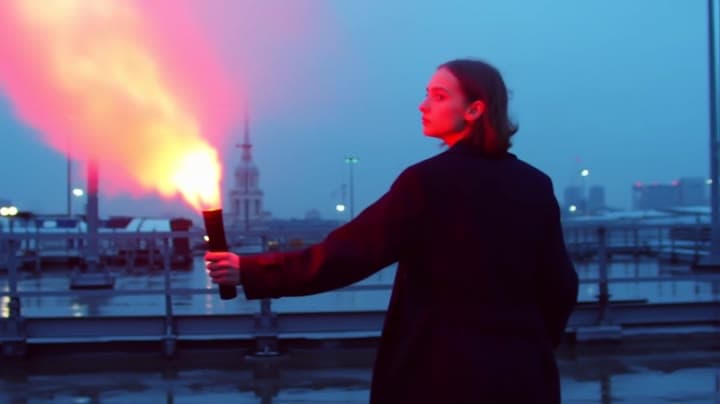
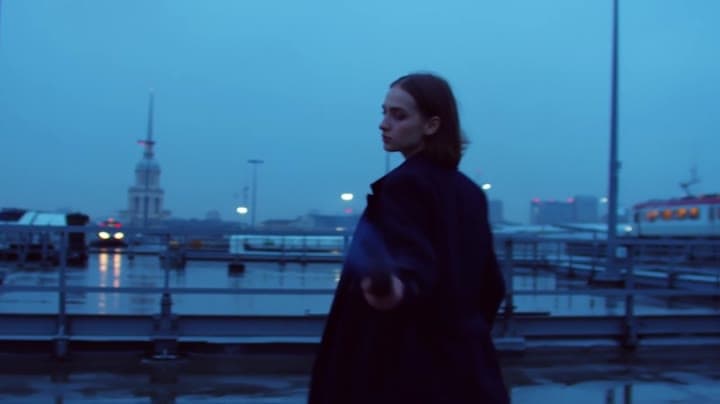
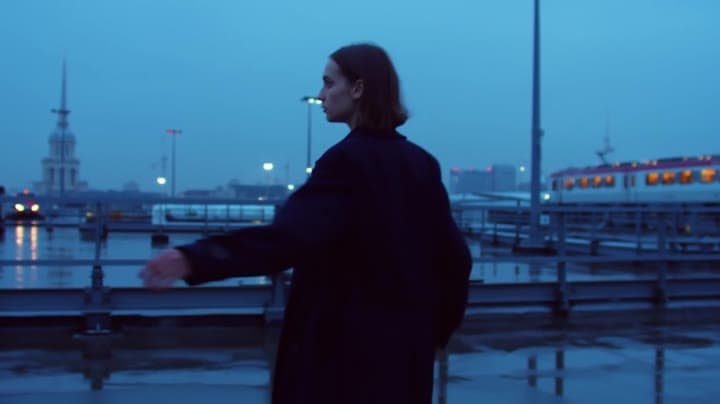
This Luma Ray 2 Flash text to video example shows city camera move. It highlights camera motion control with 5-second timing · 16:9 · 720p output.
Prompt breakdown
Prompt used to generate this render.
**Scene (plain language):** A stylish young woman in modern streetwear stands alone on a rain-slick rooftop at blue hour, overlooking a dense futuristic city. She wears a long dark coat moving in the wind and holds a gl…Show full promptHide full prompt
**Scene (plain language):** A stylish young woman in modern streetwear stands alone on a rain-slick rooftop at blue hour, overlooking a dense futuristic city. She wears a long dark coat moving in the wind and holds a glowing flare at her side. Distinctive visual anchors: reflective wet concrete, neon signs diffused through mist, distant elevated trains crossing between towers. **Cinematography:** * Camera shot: wide shot, low angle * Camera motion: slow push-in * Lens look + depth of field: 35mm, cinematic depth, shallow background separation * Lighting + palette: soft blue-hour ambient light, red flare glow, cyan neon reflections, deep charcoal shadows **Actions (beats):** * Beat 1: she stands still as the wind pulls her coat and hair sideways * Beat 2: she slowly raises the flare and turns her face slightly toward camera * Beat 3: in the final second, the flare burns brighter and sparks drift across frame **Constraints:** No logos, no readable text, no subtitles/overlays.
Workflow
Text to video
Camera
Push In
Output
5s · 16:9 · 720p
Recorded render cost
$0.52
Audio
Off
Constraints
Text To Video, Camera Move, Push In
Prompt improvement notes
Note 1
Keep the subject, camera move, lighting, duration, aspect ratio and audio requirement grouped so the render has one clear production brief.
Note 2
Change one variable at a time when cloning this prompt: model, duration, camera motion or reference input. That makes quality and price differences easier to compare.
Note 3
Add a short negative prompt if you need to block text overlays, logos, distorted hands, face warping or unwanted camera shake.
Compare this model
Review this example beside nearby engines before choosing a render path.
Why Luma Ray 2 Flash fits this shot
Use Luma Ray 2 Flash as a previous-generation fast Luma route for legacy drafts, Modify, and Reframe checks, while starting new Luma edit work on Ray 3.2.
Image input
9s max
Key frames
Related examples
View all examples Kling 3 Pro
Kling 3 Pro Mars terraforming sci-fi video example
This Kling 3 Pro watch page shows a 16:9 text-to-video sci-fi terraforming scene on Mars, using a dolly-in, slow orbit and dramatic red-to-green landscape transformation.
 Kling 3 Pro
Kling 3 Pro neon street multi-shot example
This Kling 3 Pro example demonstrates a multi-shot neon street sequence with rain reflections, native audio and structured scene anchors.
 Seedance 2.0
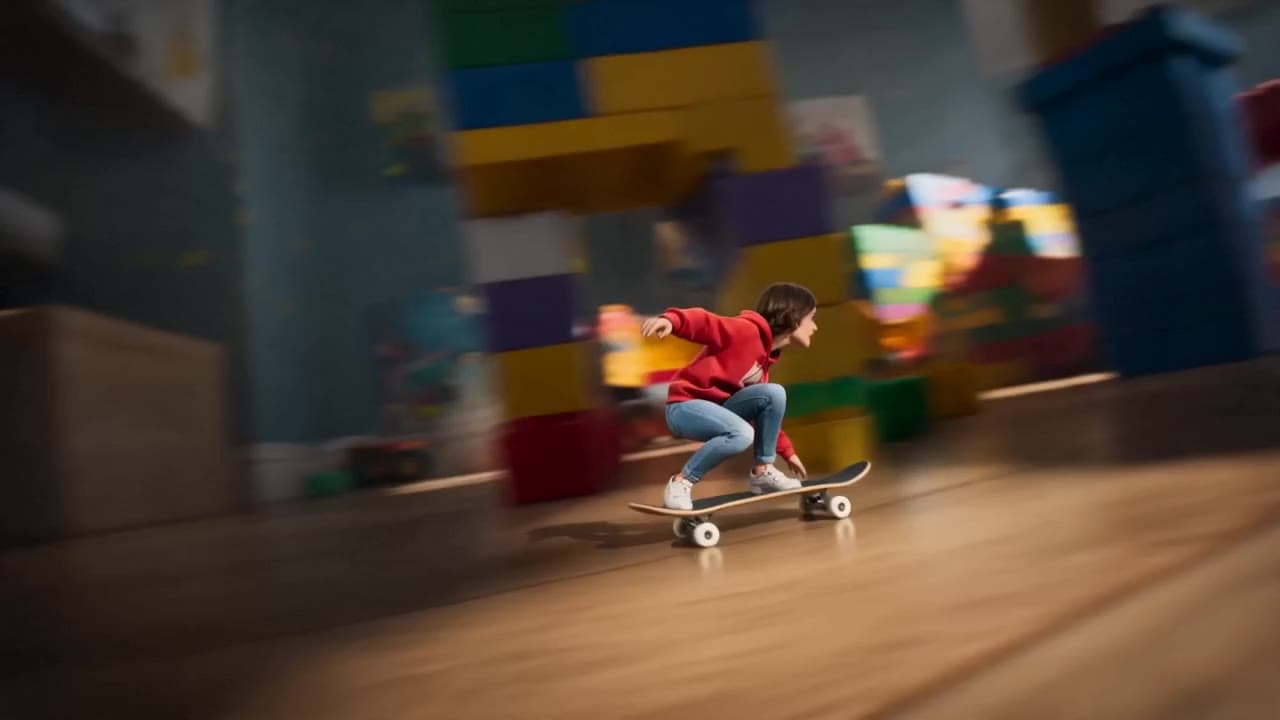
Seedance 2.0 miniature bedroom skateboard chase video example
This Seedance 2.0 text-to-video with audio example turns a children’s bedroom into a cinematic macro-scale chase sequence. A tiny skateboard rider races through oversized toy blocks, books, furniture, a rolling toy ball and a closing toy box, while the camera stays low to the floor in a fast continuous tracking shot. Use it as a reference for AI text-to-video camera movement, miniature world prompts, toy-scale action scenes and whimsical cinematic chase videos.
 Wan 2.6 Text & Image to Video
Wan 2.6 rainy neon thriller sequence example
This Wan 2.6 page shows a rainy neon thriller prompt with multi-shot direction, smooth camera work and audio-enabled pacing.