
Standard preview
$1.30
5s · 720p
PREVIOUS-GENERATION LUMA ROUTE
Previous-generation Luma route for supported Generate, Modify and Reframe workflows.
Use Luma Ray 2 when you need a legacy-compatible Luma render or an older Ray 2 workflow. Start new Luma Modify, guide/keyframe and Reframe work on Ray 3.2, then keep Ray 2 for historical prompts, fallback checks and older examples.
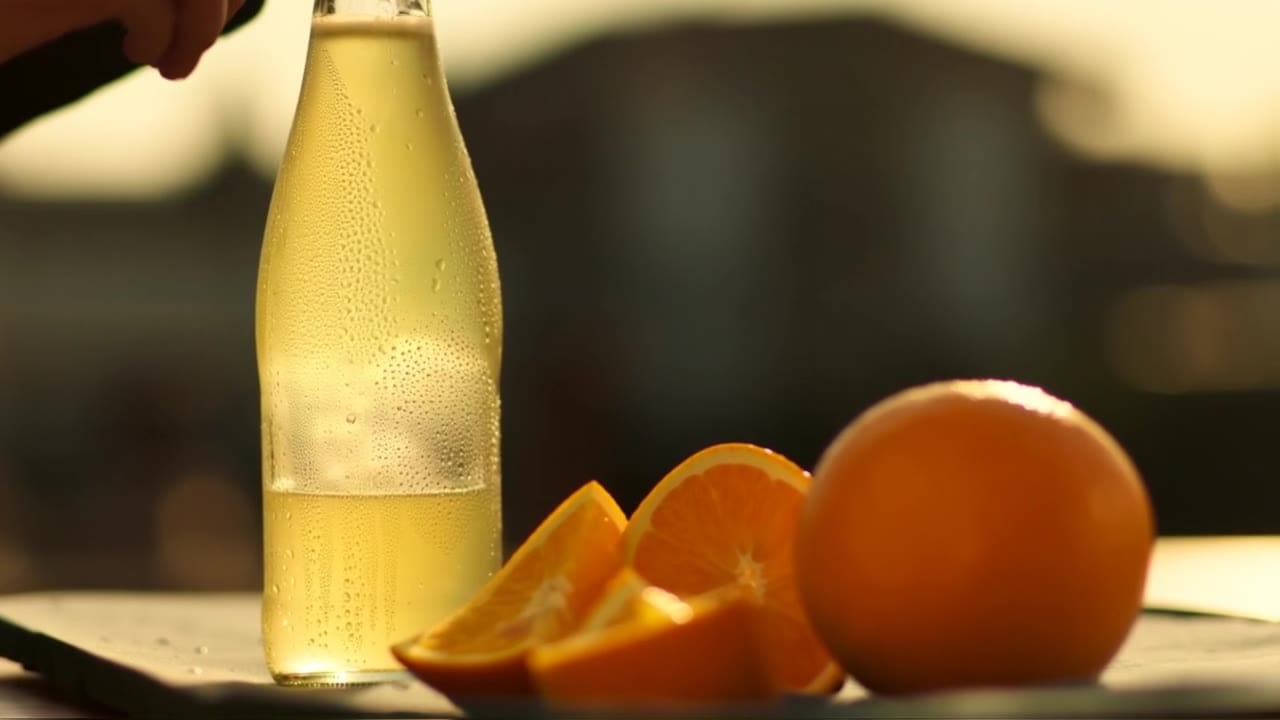
Luma Ray 2 example
Previous-generation Luma workflow
Legacy Luma route
Use Ray 2 for older prompts, historical examples and compatibility checks.
Text or image start
Generate from a prompt or animate one still with optional end-frame guidance.
Modify source clips
Keep the blocking and timing that already work while changing look or detail.
Reframe delivery cuts
Turn an approved source clip into vertical, square or wide delivery variants.
5s or 9s generate
Choose short controlled generation runs up to 1080p.
Ray 3.2 for new edits
Use Ray 3.2 first when guide frames, keyframes or current Reframe behavior matter.
Preset Ray 2 generate totals by duration and resolution - use Ray 3.2 for current Luma edit and Reframe work.
$1.30
5s · 720p
$2.60
9s · 720p
$5.20
Most popular9s · 1080p
9s
Up to 1080p
Generate pricing uses preset duration/resolution tiers. Modify and Reframe are quoted live from source-clip settings.
Use the examples rail to compare net-new generation, still animation, modify passes, and delivery reframes inside the same Ray 2 family.
Compare generation, start-image motion, Modify and Reframe inside Ray 2.
Open Ray 2 in the app and reuse prompt, aspect ratio and duration.
Ray 2 does not generate native audio on this MaxVideoAI route.
Animate a start frame, modify a source clip or reframe an approved master.
Use Ray 2 for selected shots and final delivery variants.
Use Ray 3.2 for current Luma Modify, keyframe guidance and Reframe work. Keep Ray 2 for legacy prompts, old examples and compatibility coverage.
Use Ray 2 Modify only when you need the older route. For new source-video edits, Ray 3.2 should be the first Luma option.
Use Seedance, Kling or Veo when the job is flagship generation, sound-capable video or broader reference control rather than a Luma legacy workflow.
Write a compact subject, camera, lighting and motion brief for a new cinematic shot.
Use one start image to anchor composition, product shape or identity before adding motion.
Add a closing image only when the landing pose or final composition matters.
Upload a source video, name what must stay, name what changes, then choose an adherence strength.
Prioritize the subject and delivery format instead of rewriting the whole scene.
Subject: Product hero in a golden-hour cafe • Action: Camera glides toward the product and reveals reflections
Camera: Slow dolly, stable framing, shallow depth of field • Style: Premium cinematic look, controlled highlights, no added branding
Output: Silent Ray 2 render, ready for delivery review
9s Luma Ray 2 render in 16:9, silent output.
A premium product sits on a golden-hour cafe table with clean reflections and a soft background.
Slow forward dolly, stable camera, one readable motion beat, cinematic depth of field.
Preserve product framing, avoid unreadable text, added logos or overly fast motion.
For Modify/Reframe, keep the approved source motion and specify only what changes.
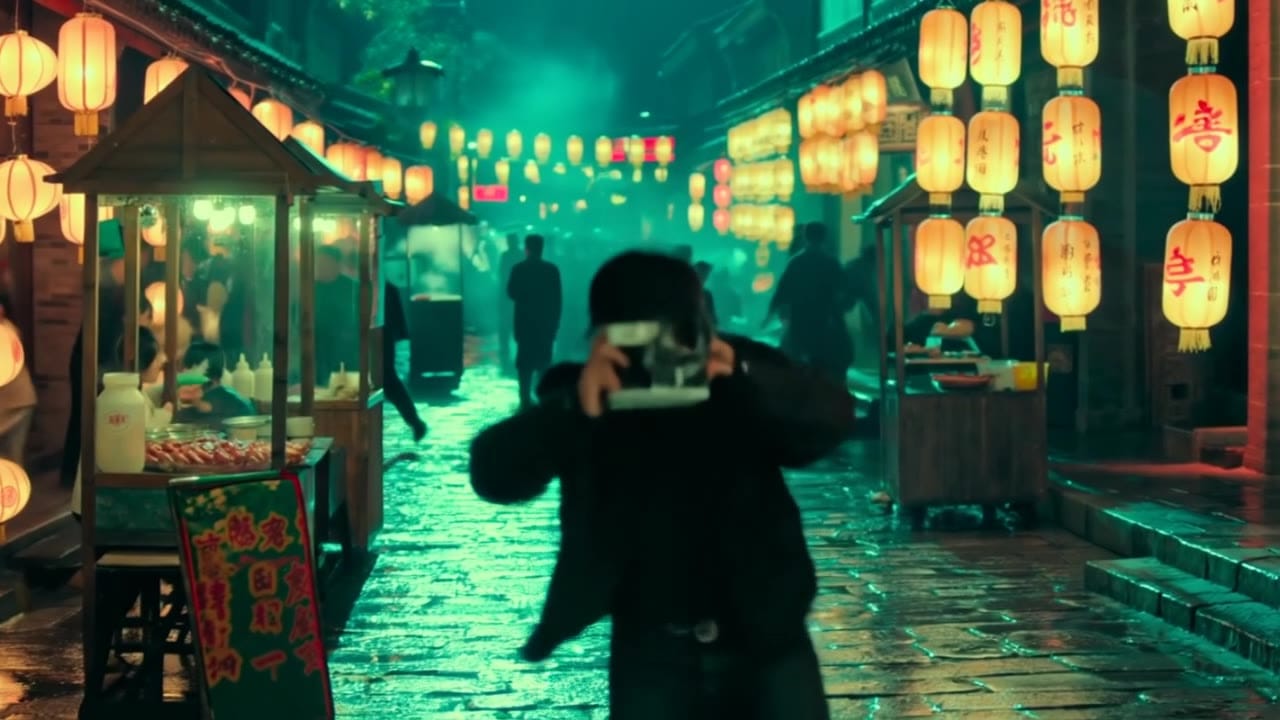
Best practices, common fixes, and important limitations to help you get the strongest results with Luma Ray 2.
These side-by-side comparisons break down price, resolution, audio, speed, and motion style so you can pick the right engine fast.
Each page includes real outputs and practical best-use cases.
Use Veo 3.1 Fast for affordable text prompts, start-image animation, multi-reference guidance, optional last-frame control, and extend workflows with optional native audio inside one unified MaxVideoAI model page.
Compare Luma Ray 2 vs Google Veo 3.1 Fast →Use Kling 3 Standard for multi-prompt sequences, start-frame image-to-video, Kling Elements, and native audio at a lower $/s rate in 1080p.
Compare Luma Ray 2 vs Kling 3 Standard →Generate Seedance 1.5 Pro clips with cinematic motion, camera lock, and native audio. Supports text-to-video or image-to-video up to 12s.
Compare Luma Ray 2 vs Seedance 1.5 Pro →The limits that shape your renders.
Text-to-Video and Image-to-Video are the creation modes: 5 or 9 seconds, 540p to 1080p, multiple cinematic aspect ratios, optional loop, and optional end-image guidance for image-driven runs.
The workflow expansion is not just marketing copy. Ray 2 now exposes source-video editing directly, which changes how useful the model is in production.
Built-in safeguards and best practices for responsible creation with Luma Ray 2.
Ray 2 keeps the active Luma workflow family inside one model page: text-to-video, image-to-video, modify, and reframe.
Modify uses a source video plus an optional prompt and optional reference still. MaxVideoAI exposes strength presets from adhere_1 through reimagine_3.
Reframe uses a source video, a target aspect ratio, an optional prompt, an optional reference still, plus optional grid and crop-window controls.
Choose Ray 2 when you want the flagship Luma tier for higher-confidence finals, while Ray 2 Flash is better for faster drafts and cheaper iteration.


